
This guide provides a step-by-step process to integrate Mailchimp data in your Confluence using the Mailchimp API with REST Basic Auth.
This part just walks you through adding the data source. For the complete tutorial on showing Mailchimp Insights in Confluence, check out: Mailchimp Insights [REST Basic Auth]
Step 1: Create Mailchimp API Key
-
Create a new API Key or use an existing one
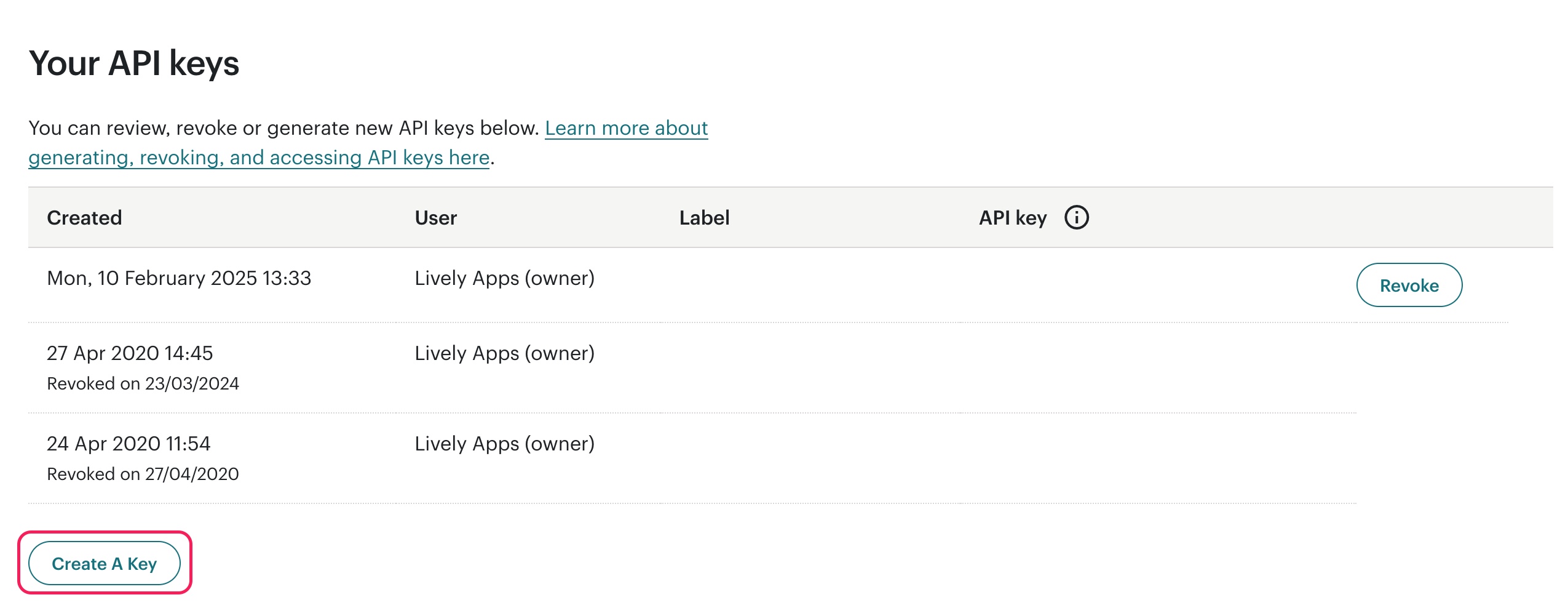
Step 2: Create a Datasource in PocketQuery
|
Field |
Value |
|---|---|
|
Name |
|
|
Type |
|
|
Base URL |
|
|
Password |
your API Key you created in the previous step |
The base url for the API is https://<dc>.api.mailchimp.com/3.0/. The <dc> part of the URL corresponds to the data center for your account.
There are a few ways to find your data center. It’s the first part of the URL you see in the API keys section of your account. If the URL is https://us6.mailchimp.com/account/api/, then the data center subdomain is us6, so the Base URL is https://us6.api.mailchimp.com/3.0/.
See Mailchimp Developer Documentation for more information.
To test whether the connection is working, you can enter /ping in the Test path field and then use the Test connection function to check the connection.
You can find detailed documentation of the Mailchimp API here.
For the complete tutorial on showing Jira issues and pull requests in Confluence, check out: Mailchimp Insights [REST Basic Auth]