
Neon is a modern, scalable cloud platform for PostgreSQL databases designed for developers and teams who need reliable, high-performance data infrastructure.
It also provides AI-powered features in its SQL Editor, allowing you to correct queries, generate sample data, and even create realistic datasets for testing.
In this page, we demonstrate how you can connect PocketQuery to a Neon PostgreSQL database.
This part just walks you through adding the data source. For the complete tutorial on showing data and charts from Neon in Confluence, check out: Neon Data in Charts [PostgreSQL]
Step 1: Create your first Neon Project
-
Go to Neon and sign in (you can use GitHub, Google, or email).
-
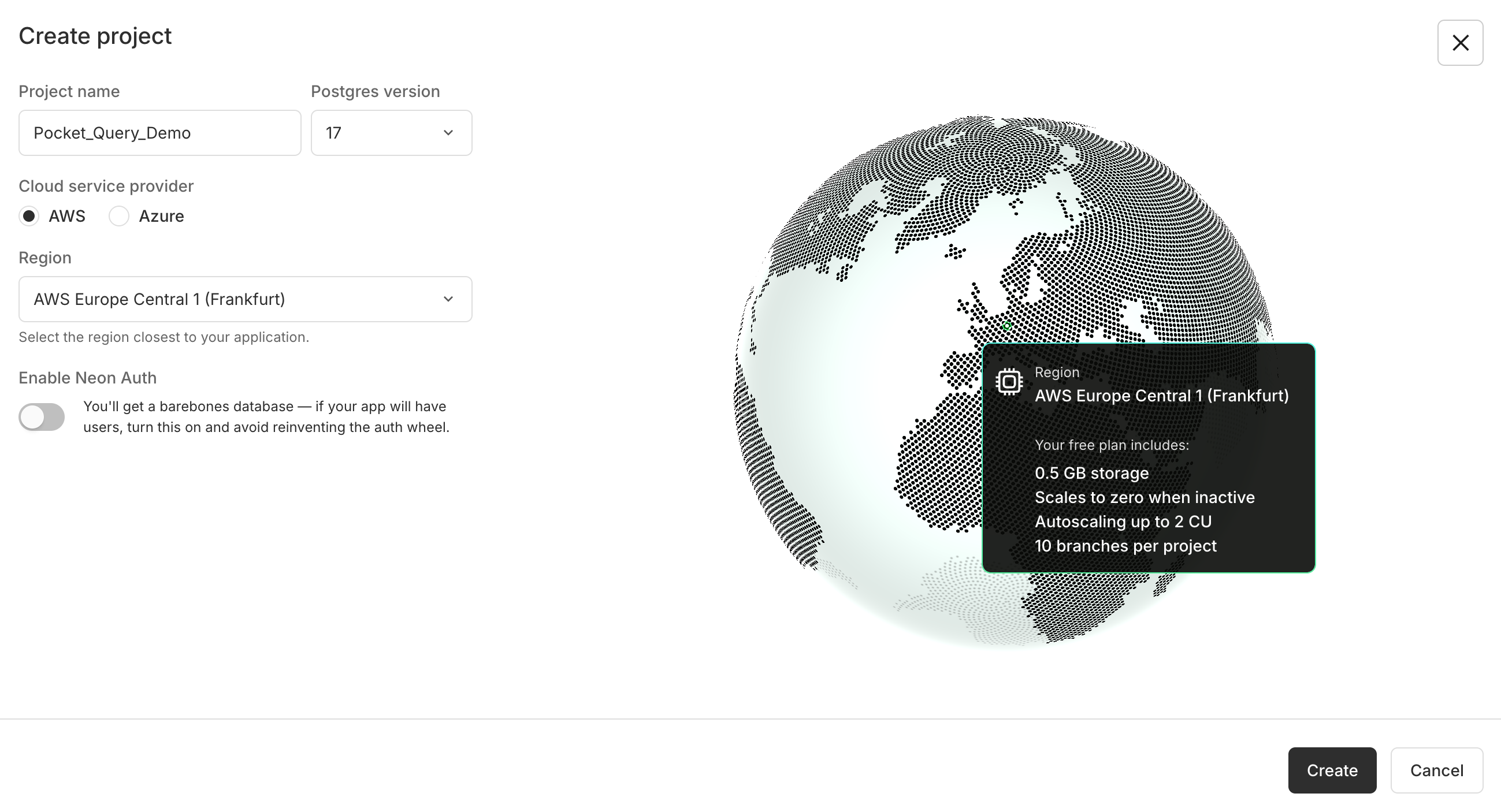
Click “Create a new project”.
-
Enter a Project name and choose the region closest to your location
-
Neon will automatically create a PostgreSQL database for you, along with a default user and password.
Step 2: Get your Connection String
-
Open your newly created Neon project.
-
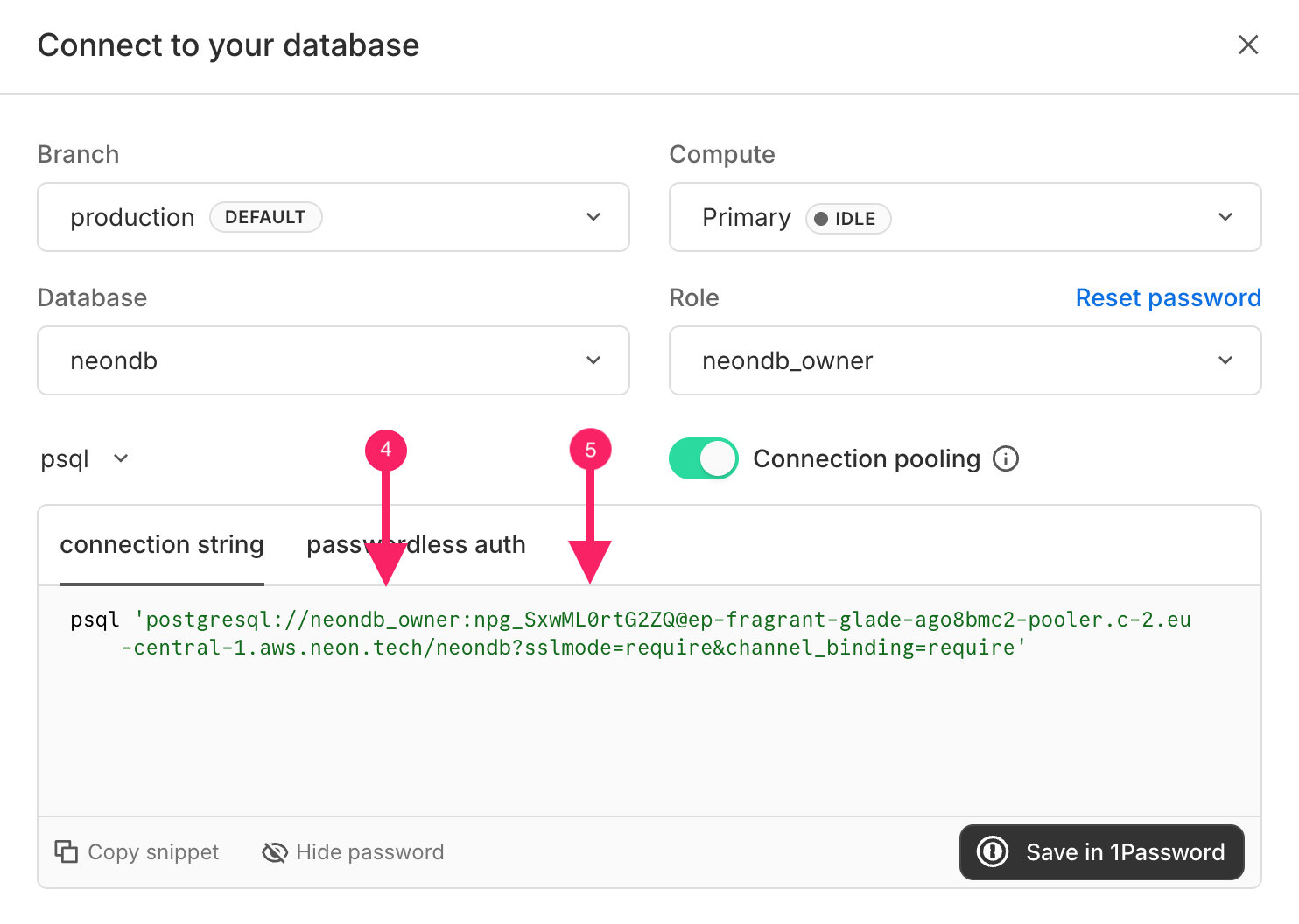
In the Project Dashboard, click “Connect to your database.”
-
In the pop-up, click “Show password” to reveal your credentials.
-
In the connection string, you can read the user, in this example:
neondb_owner. -
At this part of the connection string, you can read the password - it appears right after the colon (:) following the username.
-
Copy your PostgreSQL connection string, you’ll need it in PocketQuery.
Step 3: Convert your PostgreSQL string to a JDBC URL
If you have this PostgreSQL connection string:
postgresql://neondb_owner:npg_aPFTpcwxC09h@ep-autumn-rain-agjrl0uv-pooler.c-2.eu-central-1.aws.neon.tech/neondb?sslmode=require&channel_binding=require
you can convert it into a JDBC URL for PocketQuery in three simple steps:
1. Replace the prefix
Change
postgresql:
to
jdbc:postgresql://
2. Remove the credentials
Delete the username and password part (neondb_owner:npg_aPFTpcwxC09h@).
You’ll enter these separately in PocketQuery as User and Password fields.
3. Keep rest as it is
jdbc:postgresql://ep-autumn-rain-agjrl0uv-pooler.c-2.eu-central-1.aws.neon.tech/neondb?sslmode=require&channel_binding=require
Final JDBC URL ✅
Step 4: Add your Neon database to PocketQuery
Datasource
|
# |
Field |
Value |
|---|---|---|
|
1 |
Name |
neonDB |
|
2 |
Type |
|
|
3 |
JDBC URL |
jdbc:postgresql://ep-autumn-rain-agjrl0uv-pooler.c-2.eu-central-1.aws.neon.tech/neondb?sslmode=require&channel_binding=require |
|
4 |
User |
neondb_owner |
|
5 |
Password |
npg_aPFTpcwxC09h |
For the complete tutorial on showing data and charts from Neon in Confluence, check out: Neon Data in Charts [PostgreSQL]