
With Task Reminder, you can customize how your reminder emails look and read. The Email Templates section lets you set the subject line and the body of the email so that reminders fit your team's style and tone. No need to stick to the default - make it yours!
This is where you shape the message that lands in your users' inbox. We'll take care of sending the reminders - you decide what they say.
Where do you customize the email template?
You'll find the Email Templates section on the same page where you configure Email Settings - in the Task Reminder area of your Confluence Administration. If you've already set up who receives reminders and when they're sent, you're in the right place. Simply scroll to the Email Templates section to edit the subject and body.
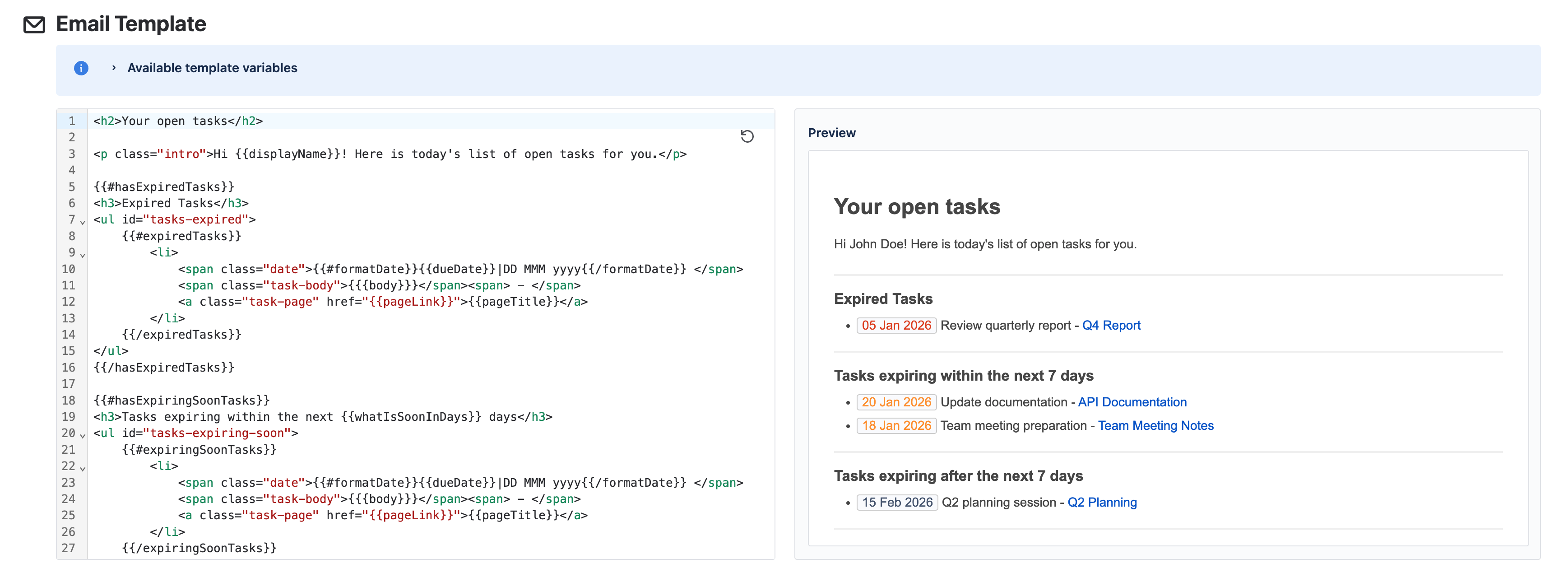
What can you customize?
You can customize the Email body, which is the main text of the reminder. Here you can write a short intro, explain what the reminder is for, and leave room for the list of tasks - Task Reminder will insert the actual tasks for each user automatically.
You can leave the default text as is, or change it to match your company's voice. Either way, every recipient still gets their own list of open tasks in the email.
How do placeholders work?
You customize the email template using Mustache syntax. When the reminder is sent, Task Reminder replaces each placeholder with real content for that user. Simply add the placeholders where you want the dynamic content to appear.
General variables
-
{{displayName}}- The user's display name. Use it to start the email with "Hi {{displayName}}," or in the subject. -
{{whatIsSoonInDays}}- The number of days used for the "soon" threshold (so you can say "tasks due in the next X days"). -
{{baseUrl}}- Your Confluence base URL. -
{{includeLimitNotice}}- A boolean flag that indicates whether a limit notice should be shown. Use it to show or hide a note when you're near the task limit.
Task lists
Task Reminder groups tasks by due date. You can show or hide each group and loop over the tasks inside it.
-
Expired tasks:
{{#hasExpiredTasks}}...{{/hasExpiredTasks}}wraps content that only appears when the user has expired tasks. Inside it, use{{#expiredTasks}}...{{/expiredTasks}}to loop over each expired task. -
Tasks expiring soon:
{{#hasExpiringSoonTasks}}...{{/hasExpiringSoonTasks}}and{{#expiringSoonTasks}}...{{/expiringSoonTasks}}for tasks due within the "soon" threshold. -
Tasks expiring later:
{{#hasExpiringLaterTasks}}...{{/hasExpiringLaterTasks}}and{{#expiringLaterTasks}}...{{/expiringLaterTasks}}for tasks due after that. -
Tasks without due date:
{{#hasWithoutDueDateTasks}}...{{/hasWithoutDueDateTasks}}and{{#withoutDueDateTasks}}...{{/withoutDueDateTasks}}for tasks that have no due date.
Task properties (inside task arrays)
Inside any of the task arrays above, you can use:
-
{{body}}- The task body or description. -
{{pageTitle}}- The title of the page that contains the task. -
{{pageLink}}- The URL to the page that contains the task. -
{{dueDate}}- The task due date (raw value). For a readable date, use the formatDate lambda below.
Formatting dates
Use the {{#formatDate}}...{{/formatDate}} lambda to format dates. Put the date value and a format string inside it, separated by a pipe: {{#formatDate}}{{dueDate}}|dd MMM yyyy{{/formatDate}}.
Example: <a href="{{pageLink}}">{{pageTitle}}</a> (Due: {{#formatDate}}{{dueDate}}|dd MMM yyyy{{/formatDate}})
This might render as: Q4 Report (Due: 05 Jan 2026).
Common format examples:
-
YYYY-MM-DDgives "2026-01-15" -
DD MMM yyyygives "15 Jan 2026" -
MMM D, YYYYgives "Jan 15, 2026" -
DD/MM/YYYYgives "15/01/2026" -
MMMM D, YYYYgives "January 15, 2026"
For all format options, see the moment.js format documentation.
Tips for a good reminder email
-
Keep the subject clear and short - Recipients should recognize it as a task reminder at a glance.
-
Don't remove the task list placeholder - Without it, users won't see their tasks in the email. Make sure the placeholder for the task list stays in the body where you want it.
If you're happy with the default template, you don't have to change anything. Customizing is optional - but if you do, it's a great way to make reminders feel more like they're coming from your team.