
Awesome! You are about to install Page Branching for Confluence Cloud. The whole setup takes only a few clicks.
Install from the Atlassian Marketplace
Page Branching for Confluence Cloud is distributed through the Atlassian Marketplace as a Forge app, so installation is fully managed by Atlassian.
-
As a site administrator, open Settings (gear icon) → Apps → Manage apps.
-
Click Find new apps and search for Page Branching.
-
Select Page Branching for Confluence Cloud and click Install.
-
Review the requested permissions and confirm.
Once installed, Page Branching is available across your site. Site administrators can decide in global settings whether the app is enabled by default in every space.
Enable Page Branching in a space
If your administrator has not enabled Page Branching for all spaces by default, you can turn it on per space:
-
Open the space where you want to use branches.
-
Go to Space settings → Apps (or Space tools → Apps, depending on your Confluence navigation).
-
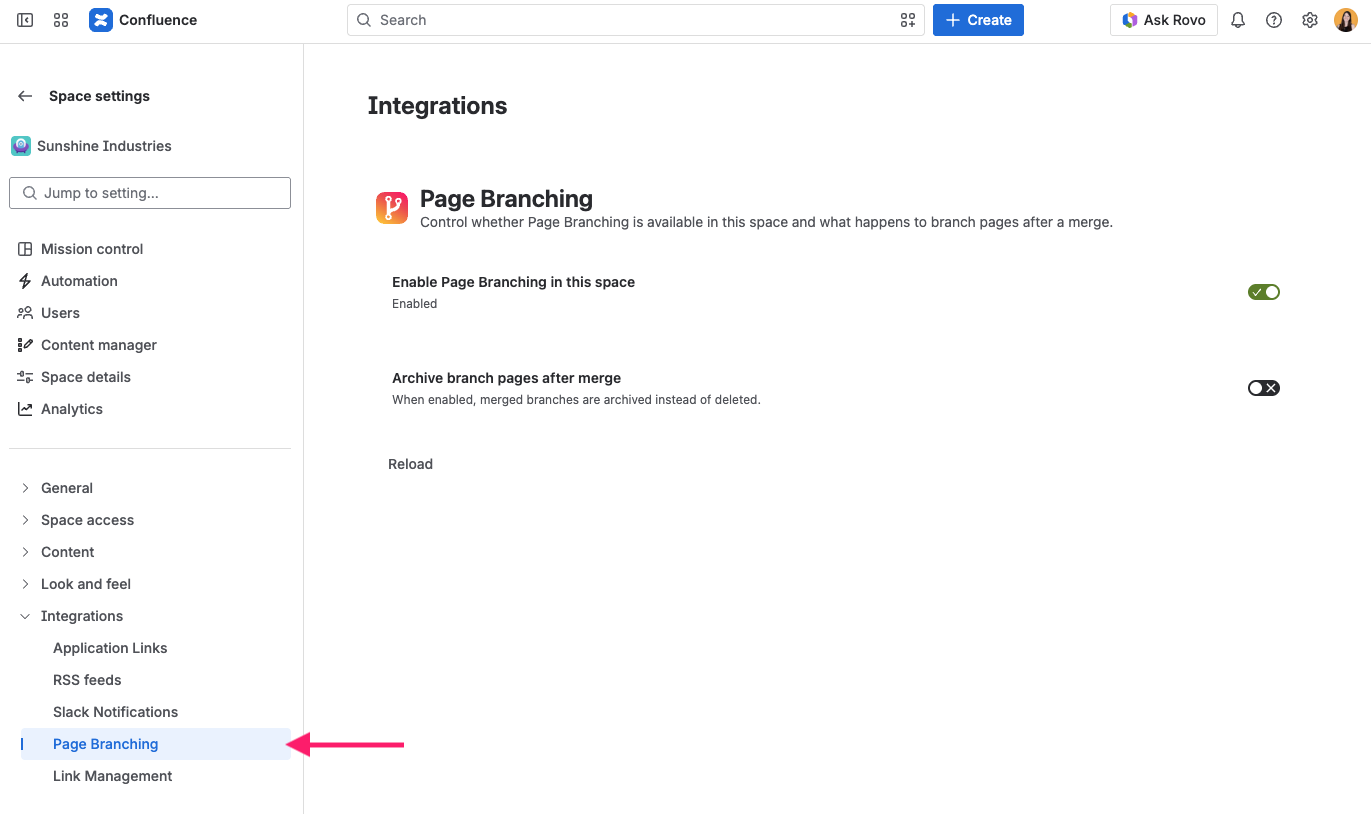
Open Page Branching space settings:
-
Turn on Enable Page Branching in this space and save.
For more configuration options (like what should happen to a branch after merge), see the Administrator Guide.
Next steps
You did it! Page Branching is now ready to use. Continue with Creating your first branch or read the full User Guide.