
Task Reminder normally sends a reminder on a schedule. The Task Assistant works the other way round: You can ask for your Confluence tasks at any moment in Rovo chat and mark them as done right there. It requires Rovo to be available on your Confluence site.
Asking for your tasks
Open Rovo chat, select the Task Assistant agent:
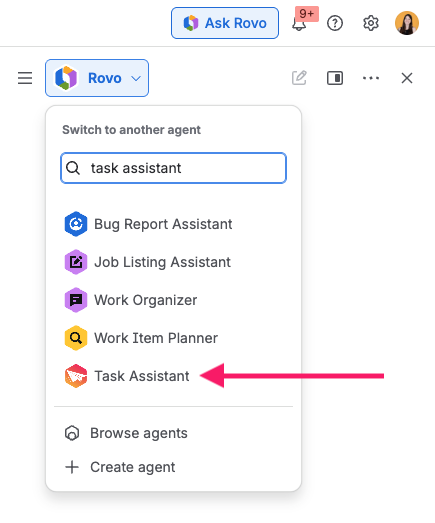
Ask for your tasks, for example “What tasks do I have?”. The Assistant answers with the Confluence tasks assigned to you, grouped the same way as in your reminder email or Slack message:
-
Expired: The due date has passed.
-
Expiring soon: Due within the period configured as “soon” in the Task Reminder settings (7 days by default).
-
Expiring later: Due after that.
-
Without due date: No due date set.
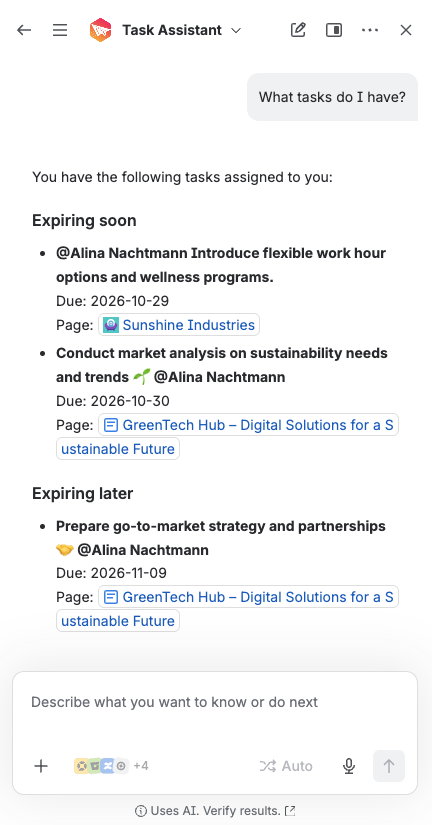
Groups without tasks are left out. For each task you see its text, its due date and a link to the page it is on.
The Assistant shows the tasks assigned to you across all spaces. The spaces and task categories configured for reminders do not narrow it: Those settings decide what you are reminded about, not what you can ask for.
Marking a task as done
Ask the Assistant to mark a task from the list as done. Before anything changes, Rovo asks you to confirm and shows the text of the task, so you can check which task you are about to tick off. Nothing is changed until you confirm.
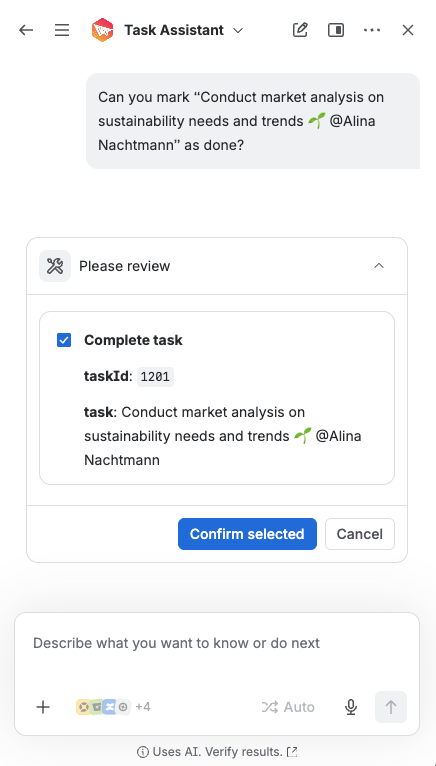
Whether a task can be marked as done is decided by Confluence: you need permission to edit the page the task is on. That is not the same as being the assignee. You may be able to mark a colleague's task as done on a page you can edit, and you may not be able to tick off one of your own tasks on a page you cannot edit.
What the Task Assistant does not do
-
It does not create tasks, reassign them, change a due date or reopen a completed task.
-
It only ever shows your own tasks.
-
A task whose body is empty, or too long to display, cannot be marked as done from chat, because there is no task text to confirm it by. The Assistant still lists it and tells you to open it on its page.
-
If you have a very large number of open tasks, the Assistant works with the most urgent part of the list and tells you that the list is not complete.
Switching the Task Assistant off
The Task Assistant is available as soon as the app is installed. A Confluence administrator can switch it off for the whole site under Confluence administration > Task Reminder > Beta features > Task Assistant in Rovo. While it is switched off, the agent still appears in Rovo but declines every request.