
This is the heart of Diary: everything on this page happens in view mode. You never open the page editor to write in a diary.
Creating an entry
-
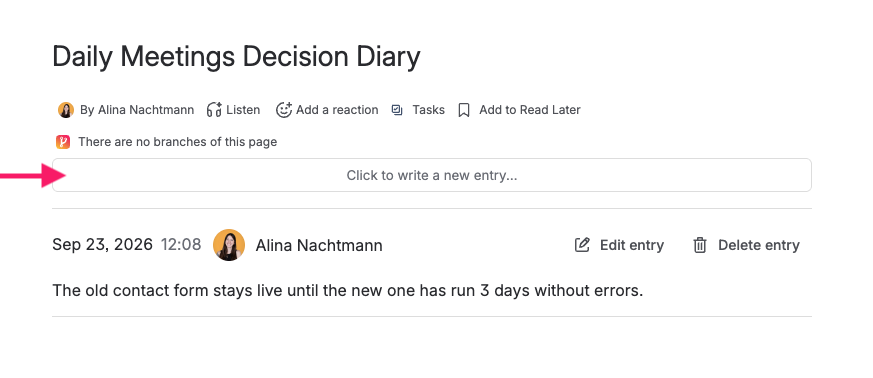
Click Click to write a new entry…. The prompt sits above the entries by default, or below them if Position Of Editor is set to Bottom in the Macro Settings.
-
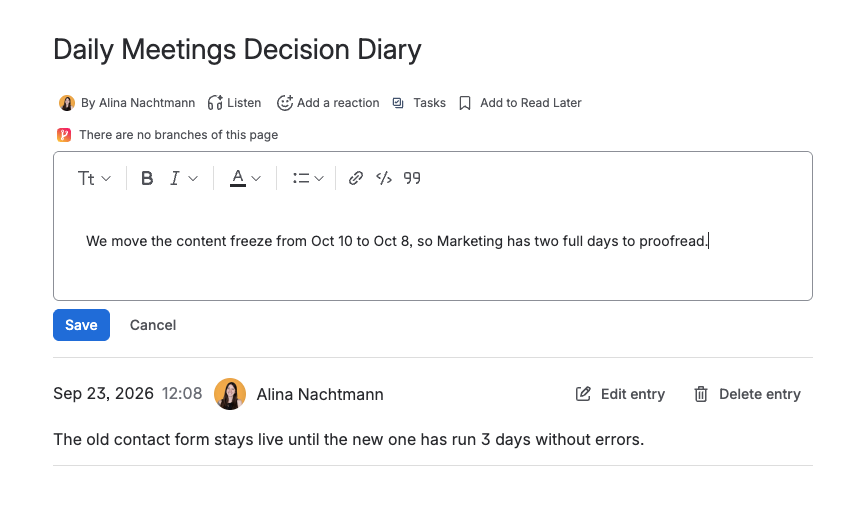
Click inside the editor that opens, and write. You have Confluence's comment editor, so the usual text formatting, lists, and links are all there.
-
Click Save.
The entry is stamped with the date and time from your browser's clock and with your name, and it appears straight away.
Starting from a template
If the diary is configured with a template, the editor opens already filled with it - see Templates for New Entries.
Editing an entry
Every entry you may change carries an Edit entry button. Click it and the same editor opens in place of the entry, filled with its current content. Change what you like and click Save, or Cancel to leave the entry exactly as it was.
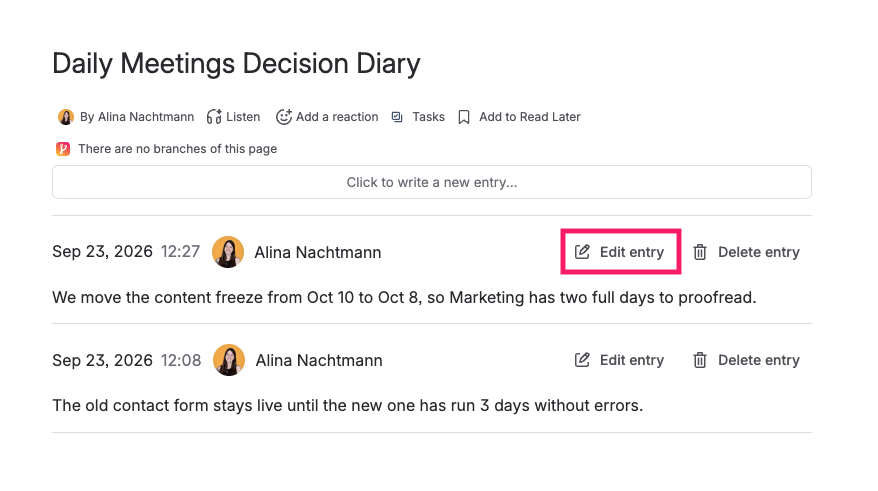
Editing changes the content only. The date, time, and author stay as they were, so an edited entry does not jump to the top of a newest-first diary.
Deleting an entry
Click Delete entry and confirm in the dialog that opens. The dialog names the date of the entry it is about to remove, so you can be sure you clicked the right one.
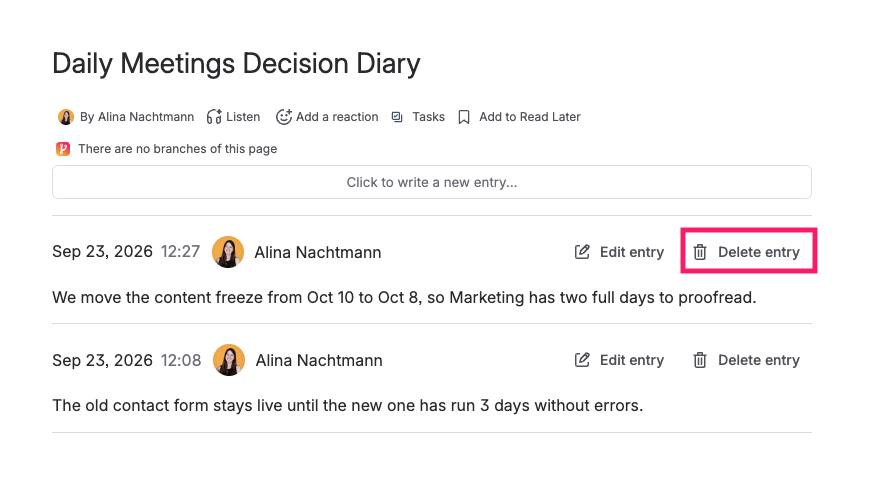
Deleting adds a new page version rather than destroying anything. To bring an entry back, revert the page in page history - see Exports, Page History, and Search.
Nothing blocks while it saves
Diary never makes you wait. Your change is drawn on screen immediately and the page is updated in the background; while a write is still in flight, that entry shows Saving… where its buttons would be.
If the write is refused - you no longer have page edit permission, say, or someone removed the diary while you were typing - the entry is taken back off the screen and your words are handed back to the editor so nothing you wrote is lost. Diary tells you what happened rather than failing quietly.
When someone else is writing too
Two people can write in the same diary at the same time. Each write re-reads the page, applies the change, and saves it, so entries do not overwrite one another.
If the page changed underneath a write in a way that cannot be reconciled, Diary leaves the entry alone and asks you to reload and try again rather than guessing what you meant.
Who may do all this
Creating, editing, and deleting entries all need permission to edit the page. A read-only viewer sees the entries and no controls at all - see Permissions and Who Can Write.