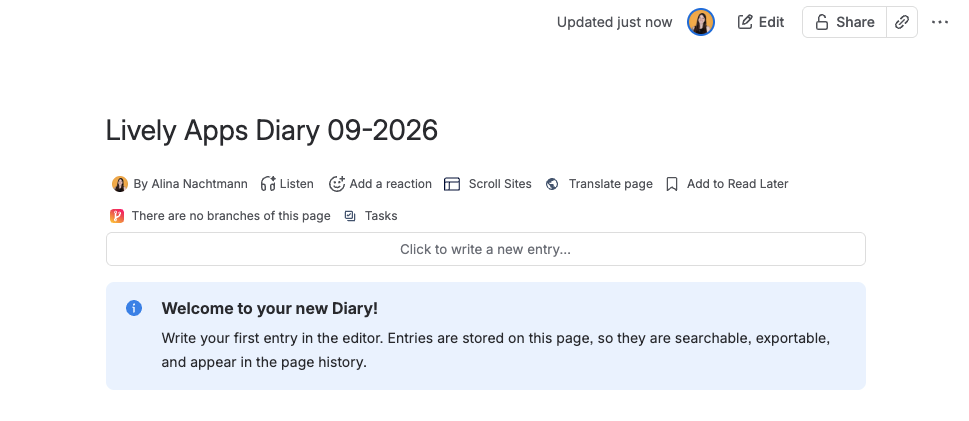
Inserting the Diary Macro

A Diary is a macro on a page. You insert it once — and from then on everything happens in view mode.

Inserting it

  1. Open the page you want the diary on and click Edit.

  2. Type /Diary and choose Diary, or open the macro browser and search for it there.
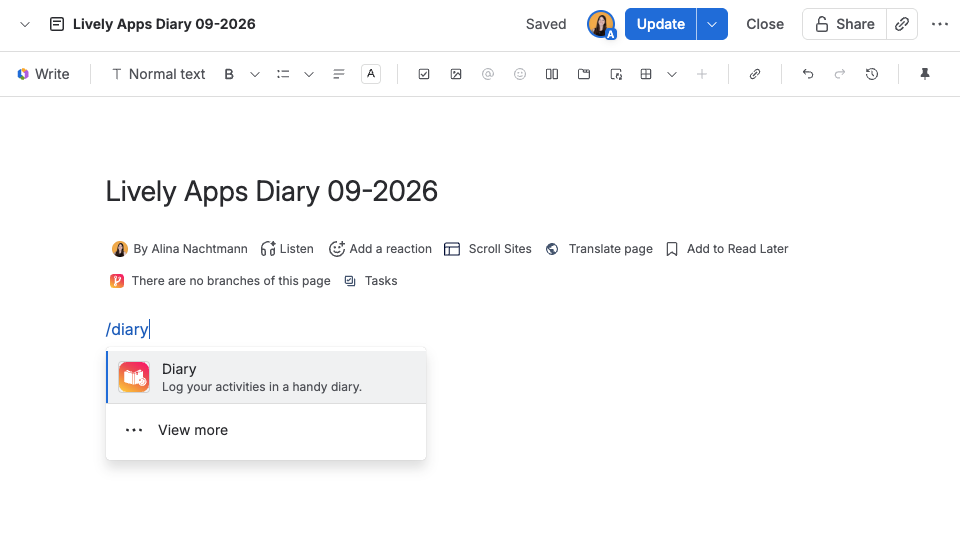
  3. Publish the page.

You now have an empty Diary, with a short welcome message and — if you may edit the page — an editor prompt waiting for the first entry.

📷 Screenshot: macro-in-page-editor.png — the Diary macro as it appears in the page editor (not view mode), so readers recognise it when they meet it there. Include the macro's floating toolbar with the configuration button visible.

Configuring it

Click the macro and choose the configuration button to open the parameters panel. Ten parameters control the order of entries, the style, where the editor sits, whether a title and the time are shown, how many entries fit on a page, and which template new entries start from. Every one of them is described in Macro Parameters.

Every parameter is a display or authoring choice. Changing one never rewrites your entries, so you can experiment freely on a diary that already has content in it.

More than one Diary on a page

You can put several Diary macros on the same page. Each keeps its own entries and its own parameters, so a project page can carry a decision log and a status log side by side without the two mixing.
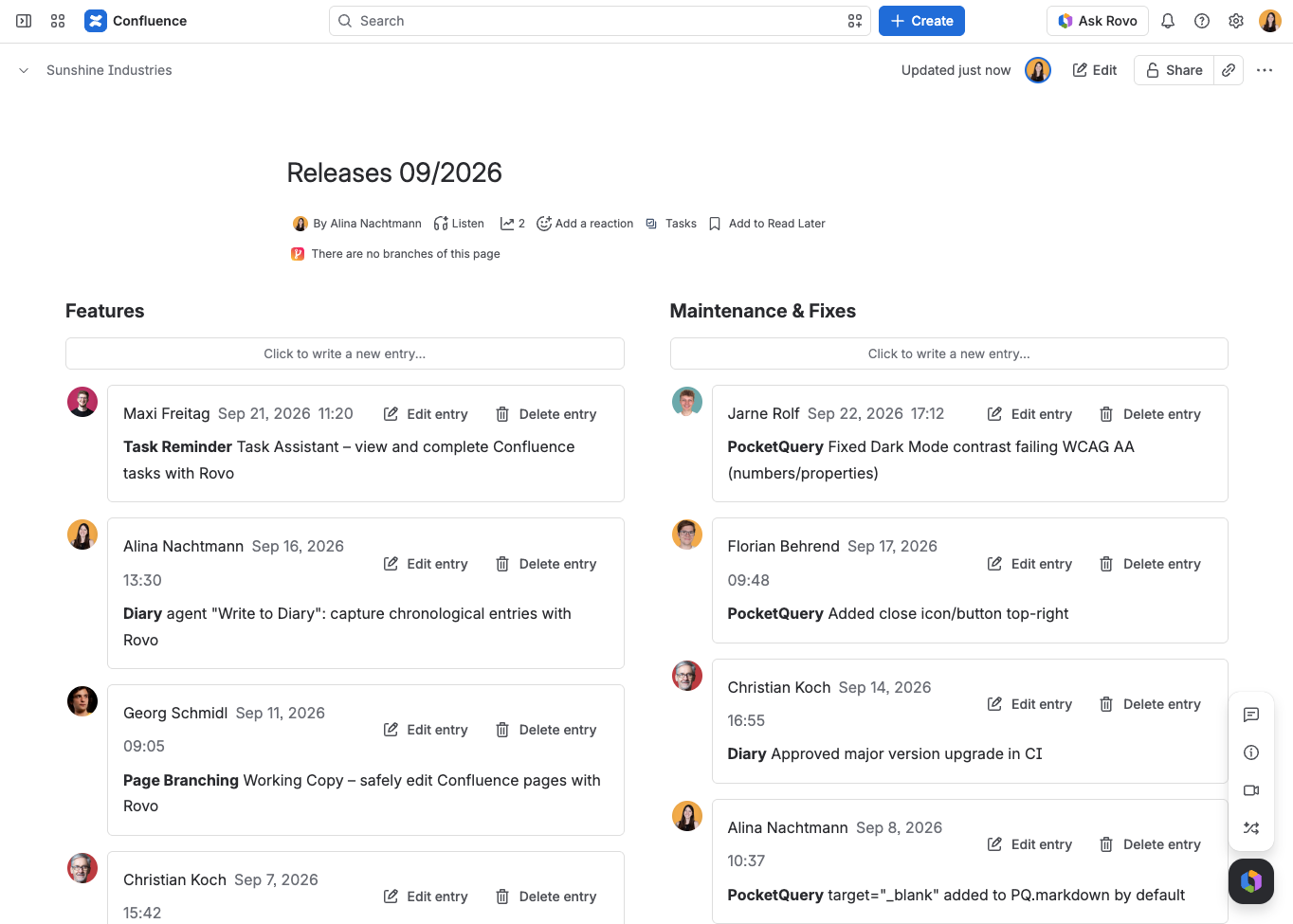
📷 Screenshot: two-diaries-one-page.png — one page in view mode with two Diary macros on it, ideally configured differently (one Simple, one Bubble, each with its own title) so it is obvious they are independent. Optional, but it makes the point far faster than the paragraph does.

Where the entries are kept

Entries are stored inside the macro, as a four-column table: Date, Time, From, and Content. This is the same model the Data Center app uses, and it is the reason entries are searchable, exportable, permission-inherited, and recoverable from page history.

You can see that table by opening the page editor — and you can change it there by hand, including an entry's date, time, and author. Take a little care if you do:

📷 Screenshot: entries-table-in-page-editor.png — the entries table as seen in the page editor, with its four column headers (Date, Time, From, Content) and two or three rows of real entries. This is the most valuable image on the page: it is the only place a reader can see how their entries are actually stored.

An entry whose date or time is not valid — 24:53, say — or whose author cell is empty is skipped when the Diary renders. It is not lost: correct the value in the page editor, or revert the page, and the entry comes back.

Moving and copying pages

Because the entries travel inside the page body, copying a page copies its diary entries and moving a page moves them. There is nothing to re-point afterwards, and no app data left behind.

Next steps