
Before you merge, it is a great idea to compare a branch with its original page so you know exactly what is about to change. Page Branching gives you a rendered side-by-side view.
Open the diff view
-
Open the branch page in view mode.
-
In the Page Branching byline below the page title, open the actions menu.
-
Choose View diff.
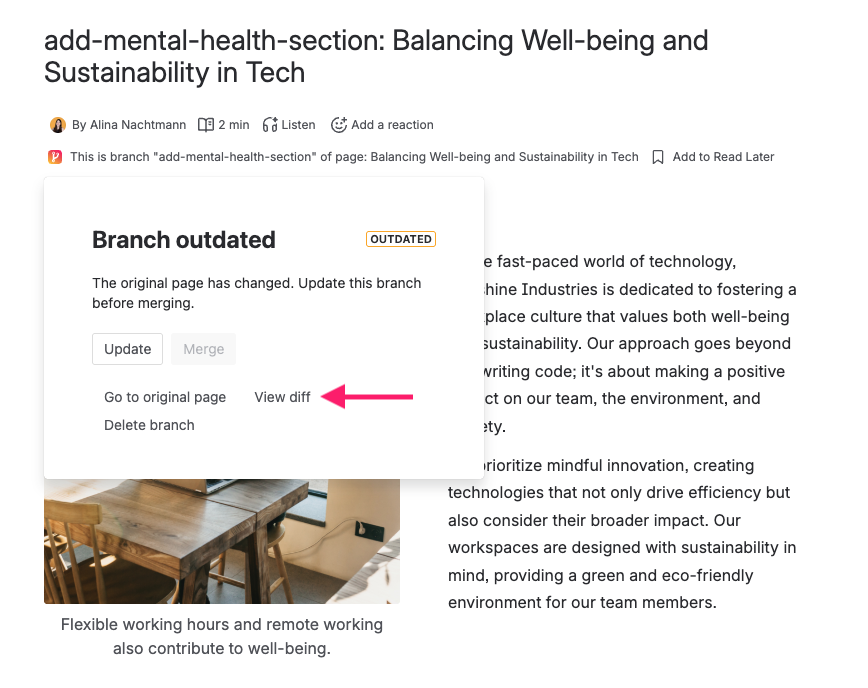
The diff modal opens with the rendered content of the branch on one side and the original page on the other.
Read the diff
Use the diff to spot accidental deletions, double-check tone changes, or get a quick approval from a reviewer before you publish. Differences are highlighted inline:
-
Added content (new on the branch) is highlighted in green.
-
Removed content (gone on the branch) is highlighted in red.
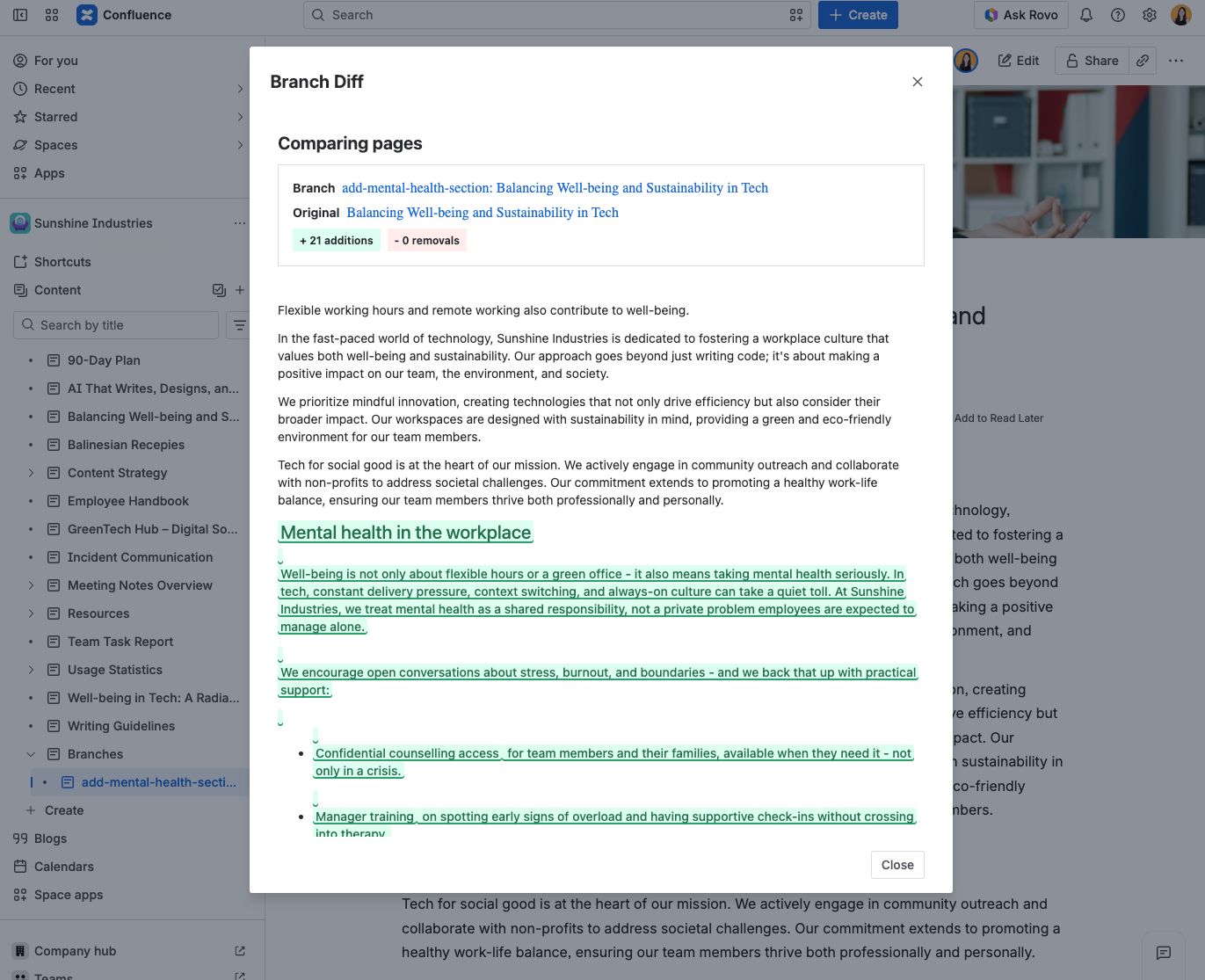
Macros appear as readable placeholders in the diff, so you can still see that something changed without wading through raw macro markup.
Page Branching renders both versions as Confluence HTML, so headings, tables, macros, and images all show up like they would on a normal page.
Approving from the diff
In spaces where merges require approval, the diff is also where approvers decide. If you are an approver who may decide on the branch you are looking at, a Merge approval section appears below the diff with Approve and Request changes buttons and an optional comment for the branch author.
Your decision is recorded against the exact branch and original page versions this diff was rendered from, so an approval always refers to the content you were shown. See Merge Approval.
What to do next
Happy with the changes? Close the diff and click Merge from the byline to publish the branch back to the original.
See something off? Click Edit on the branch, polish it, then run the diff again. As long as the branch is still up to date with the original, you can keep iterating safely.
If the diff shows that the original has moved on while you were working on the branch, run Update first to pull the latest content into the branch. See Merge Conflicts if any overlapping edits need attention.