
Sometimes Page Branching cannot merge a branch back into its original page automatically. Don’t worry – this is a safety net, not an error. It happens when both the branch and the original page were edited in the same place, so the app cannot decide on its own which version to keep.
How a merge conflict happens
Imagine a simple page with two paragraphs. You create a branch and fix a typo in the second paragraph on the branch. Before you merge, someone edits the same text on the original page in a different way.
Page Branching no longer knows whether to keep the original edit or apply the branch edit, so it shows a merge conflict instead of guessing.
How to recognize a conflict
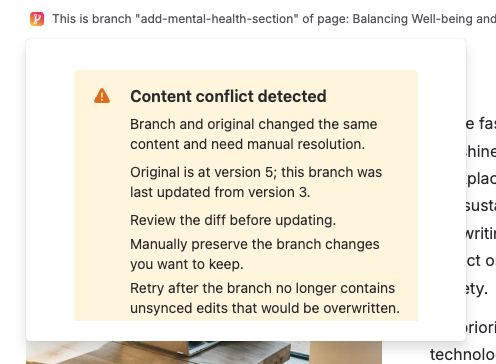
On Cloud, the Page Branching byline tells you when a branch is outdated or cannot be merged. You will also see conflict details when you try to merge or open the conflict resolution flow.
How to resolve a merge conflict
-
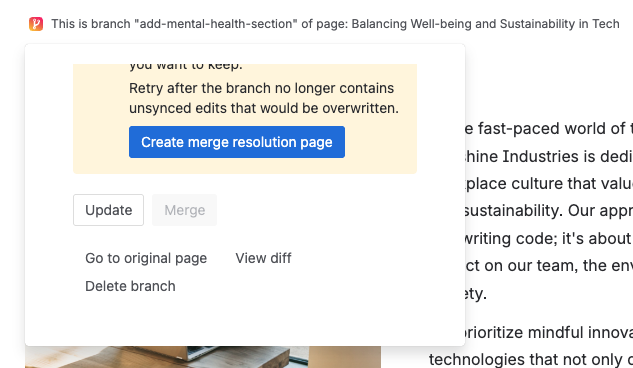
Open the branch page and use the modal and click Create merge resolution page.
-
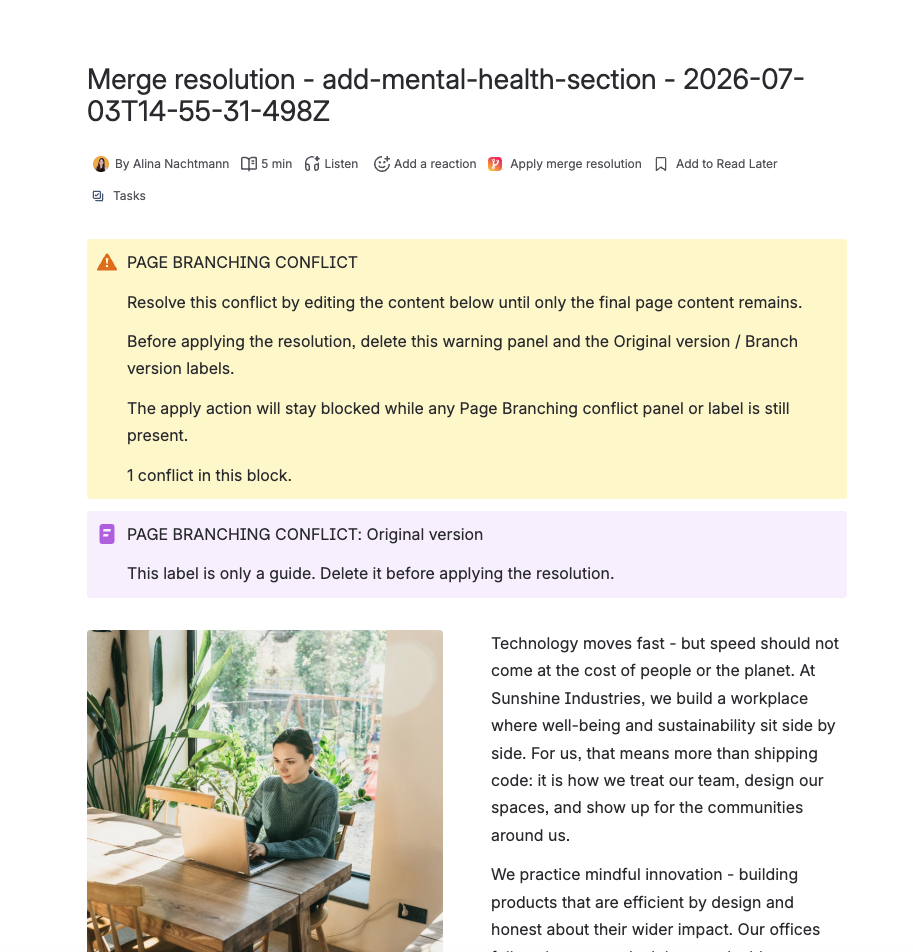
Review the differences. The Merge resolution page shows both the original and the branch version. Remove/adjust parts so it reflects what you want before the final merge.
-
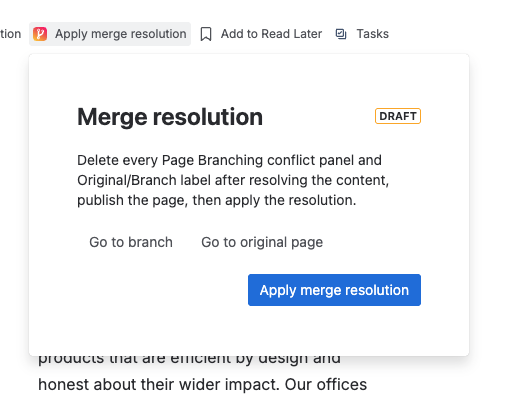
When the branch is up to date and no longer conflicting, run Apply merge solution.
If you are unsure which version to keep, coordinate with your team on the original page, sync the branch, then merge.
Conflicts in spaces that require approval
Resolving a conflict happens on the branch itself and never needs an approval. Because resolving a conflict changes the branch, an approval the branch already had becomes outdated afterwards: bring the branch up to date first, then submit it for approval, so the approver reviews the content that will actually be published. See Merge Approval.
Tips to avoid conflicts
-
Merge branches soon after they are ready
-
Use Update on the branch before editing the original page for long-running work
-
Avoid editing the same paragraph on the original and the branch at the same time