
Page Branching comes with Working Copy, a Rovo agent that takes care of the branch workflow for you. Tell Rovo which page you want to work on, and it sets up a safe copy – a working copy – for you. The live page stays untouched while the work happens in the copy, and when the work is done, Rovo helps you publish it.
A working copy is a regular Page Branching branch. Everything you know from the byline, such as Update, Diff, and Merge, works on it as usual.
What Rovo does for you
-
Sets up a working copy. Say that you want to work on a page, and Rovo creates the working copy. You edit it like any other Confluence page.
-
Knows where you are. Rovo recognizes whether the page you are on is a live page or a working copy, and which live page a copy belongs to.
-
Reuses existing copies. If a page already has working copies, Rovo names them, so you carry on in one of them instead of opening another.
-
Checks the status. Rovo tells you whether a working copy still differs from the live page and whether anything is blocking publication.
-
Publishes when you are ready. Publishing goes through the normal merge. Rovo asks you to confirm before anything is written to the live page.
How to use the Working Copy agent
-
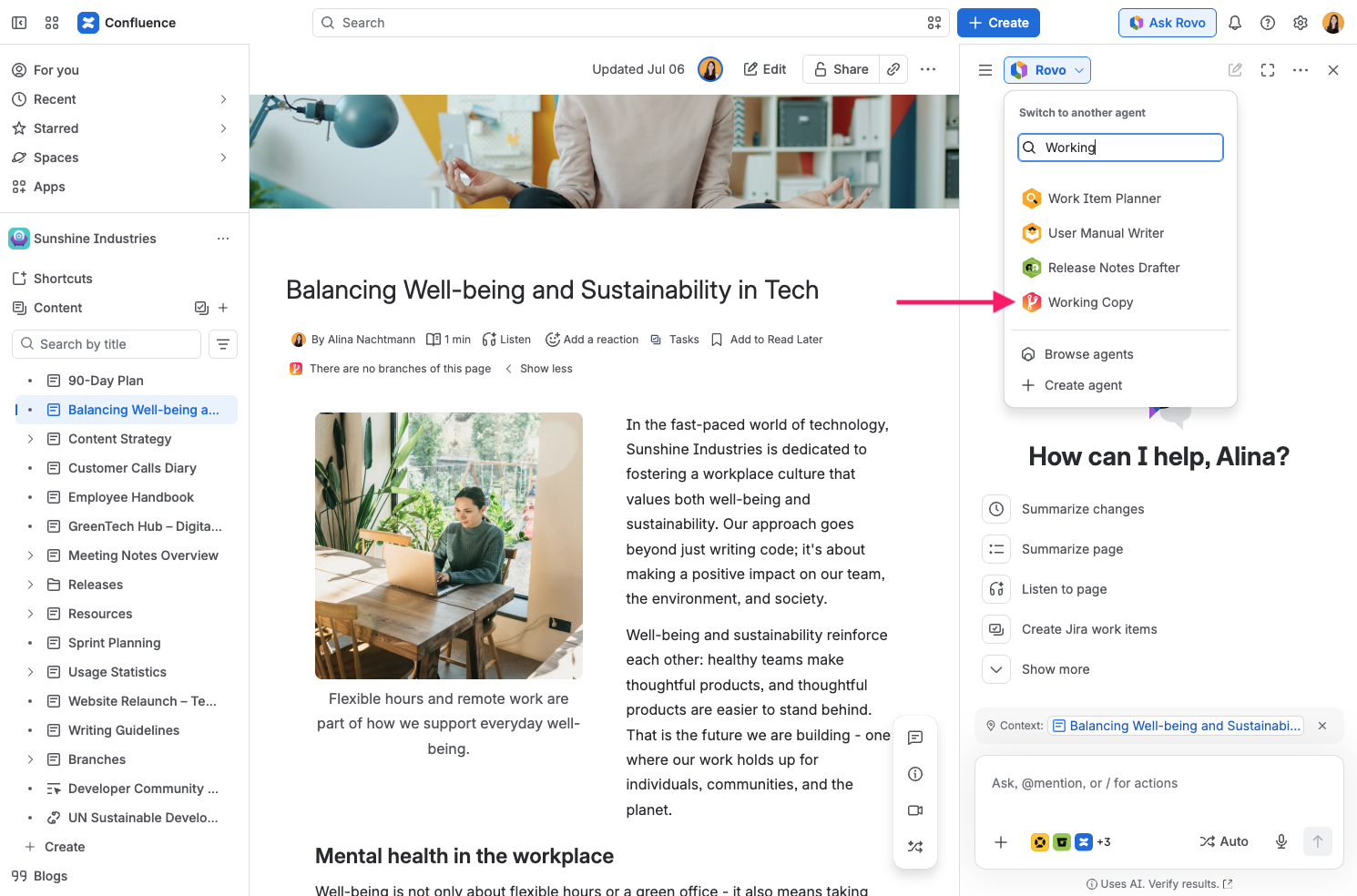
Open the live page you want to change and start a chat with the Working Copy agent in Rovo:
-
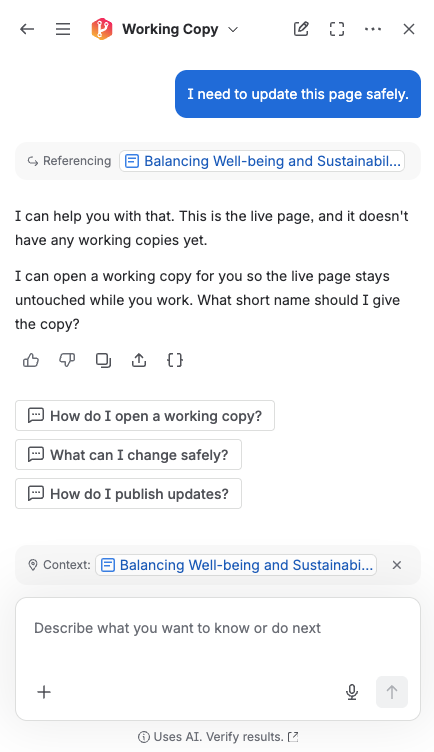
Ask for a working copy. For example: "I need to update this page safely." If the page already has working copies, Rovo lists them – pick one to carry on, or ask for a new one.
-
Open the working copy using the link Rovo gives you.
-
Edit the working copy in the Confluence editor, just like any other page. The live page stays unchanged.
-
Review your changes. Use Diff in the byline to compare the working copy with the live page.
-
Check the status. Ask Rovo, for example: "Can I publish this working copy?" Rovo tells you if the copy is outdated, in conflict, or waiting for an approval. If it is outdated, use Update first.
-
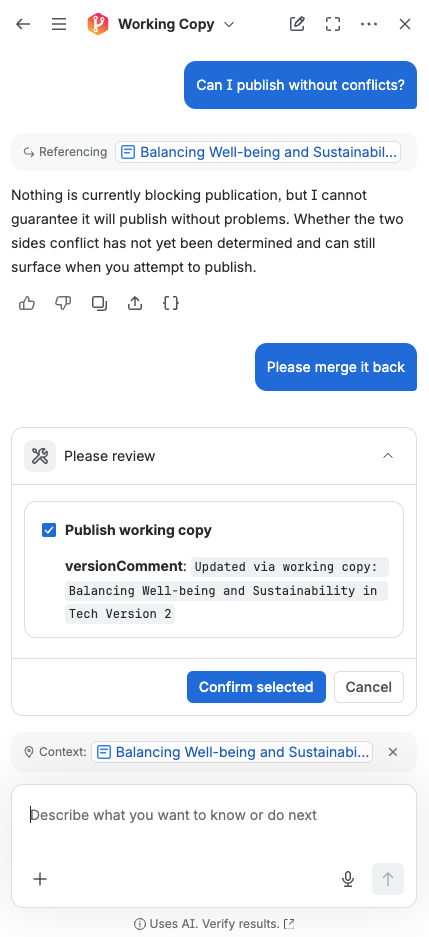
Publish. Tell Rovo that you want to publish the working copy, and confirm when Rovo asks. The changes are merged into the live page.
What Rovo does not do
Rovo never writes page content itself. You or your team edit the working copy in the Confluence editor, exactly as you would in any branch.
Rovo also never resolves a conflict. If a working copy is outdated or in conflict with the live page, Rovo sends you back to the controls on the page: use Update to bring the working copy up to date, or follow the steps in Merge Conflicts to resolve overlapping edits.
Outdated working copies cannot be published
A working copy that is behind its live page cannot be published – neither through Rovo nor through the byline or the Branches page. The page controls and the agent always agree on this. Bring the working copy up to date with Update, review the result, and publish again.
Working copies in spaces that require approval
If a space administrator has turned on Merges require approval, Rovo takes this into account. It does not call a working copy ready to publish while an approval is still missing or outdated. Submit the working copy for approval as described in Merge Approval.
Working copies and the branch limit
If a space administrator has limited how many branches a page may have, the limit applies to working copies too. When the page already has as many as the space allows, Rovo opens no new copy: it names the limit and points you to the copies that already exist. A place frees up once one of them is published or deleted.
If you can see fewer copies than the limit, the others are copies you can’t open. Rovo says so, and that a space administrator can remove a copy that no longer exists on the space’s Branches page. If someone else is opening a working copy of the same page at that moment, Rovo asks you to try again shortly.
Tips
-
Ask Rovo for the status of a working copy before you publish. It tells you what, if anything, is still in the way.
-
Use Diff on the working copy to review your changes before you confirm the publication. See Comparing Branches.
-
Keep working copies short-lived. The sooner you publish, the less likely the live page changes in the meantime.