
Creating branches
You can create a branch from any Confluence page where you have create and edit permission.
-
Open the page in view mode.
-
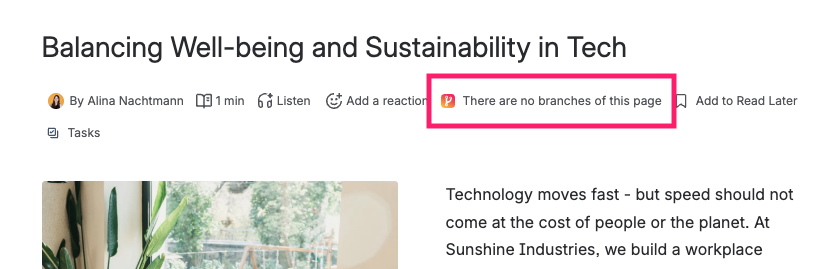
Find the Page Branching byline action below the page title and click Create Branch, or open the page action (...) menu and choose Create Branch.
-
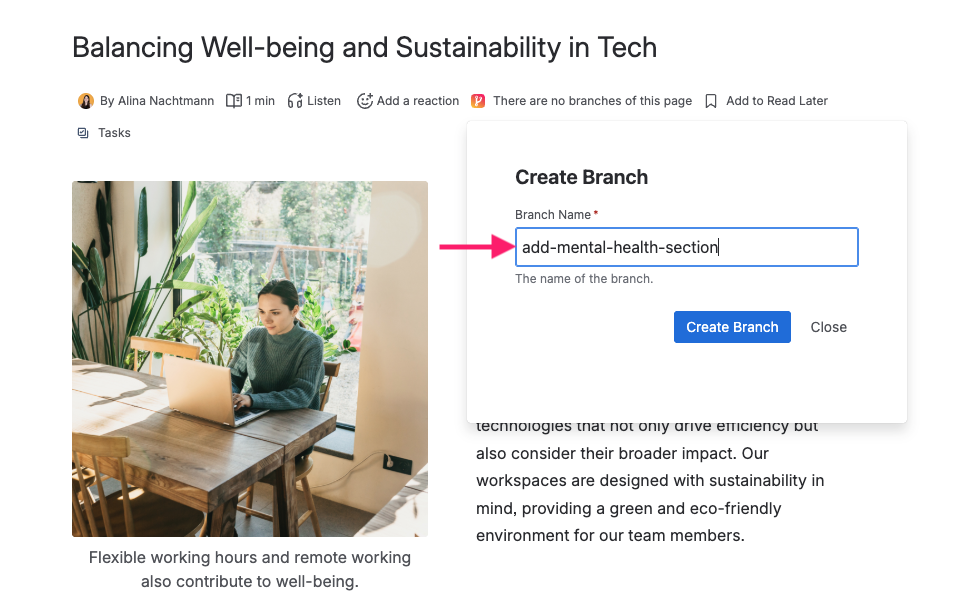
Enter a branch name and confirm.
You are redirected to the new branch page. The branch keeps the original page’s emoji and header image, and a branch icon in the byline shows that you are working on a branch. Edit it like any other Confluence page – the original page is not changed until you merge.
Branch limit per page
A space administrator can limit how many active branches a page may have. Once a page has reached the limit, Create Branch is unavailable and the byline explains why, for example “This space allows 2 branches per page, and this page already has 2 active branches. Continue in an existing branch, merge or delete one before creating another.” Create Branch in the page action menu shows the same note, with links to the existing branches.
Merging, deleting or trashing a branch frees its place right away. The limit applies to everyone, space administrators included. Branches you can’t open count too. If one of them no longer exists, a space administrator can remove it on the space Branches page (see Space Branches Overview).
Managing branches on the original page
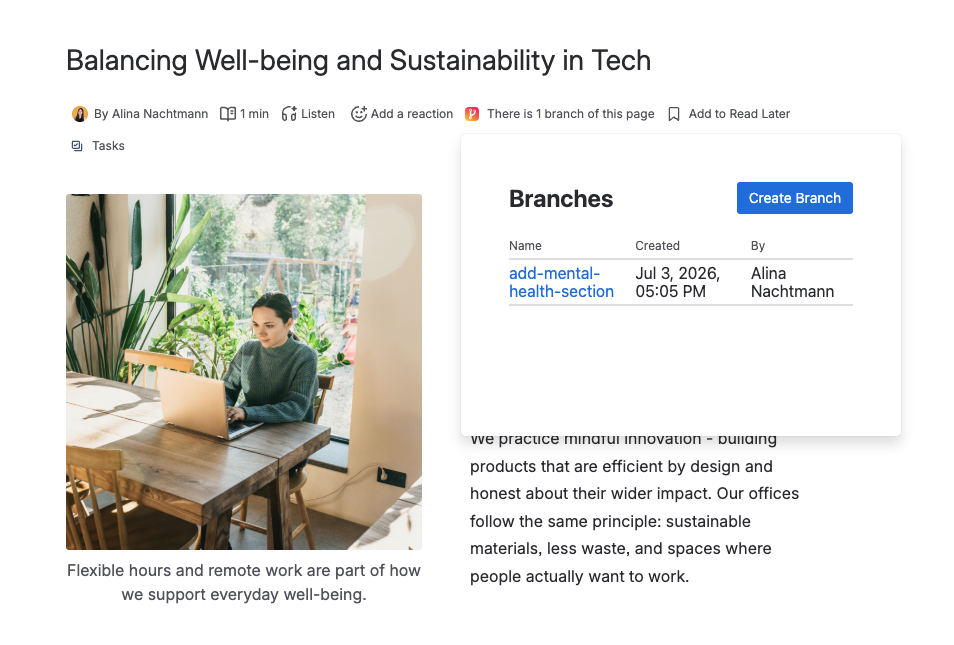
On an original (non-branch) page, the byline shows how many branches exist. Open the branch list to:
-
Navigate to a branch
-
See branch status at a glance
-
Merge or delete a branch
Branches you can’t open, for example because of page restrictions, are counted but not listed. The list then says how many it leaves out, for example “1 branch of this page can’t be opened by you.”
Editing a page that has branches
You can always edit the original page directly, but each direct edit makes the page’s branches outdated: they need an Update before they can be merged, which can lead to conflicts.
If a space administrator has turned on the hint for open branches, a banner appears in the editor when you start editing a page that has branches, for example This page has 2 open branches. It links each branch you can open, says who created it, and recommends making your change in one of them or checking with whoever created it first. Branches you can’t open are counted but not named. If the page has more than ten branches, the banner names ten and the byline shows the rest.
The hint never blocks you. Click Dismiss to hide it for the rest of this edit. It appears again the next time you edit the page while it still has branches. Live docs have no separate edit mode, so they show the hint whenever they are open. Branch pages never show it. See the Administrator Guide for how to turn it on.