
Awesome! You are about to install Diary for Confluence Cloud. The whole setup takes only a few clicks.
Install from the Atlassian Marketplace
Diary for Confluence Cloud is distributed through the Atlassian Marketplace as a Forge app, so installation is fully managed by Atlassian.
-
As a site administrator, open Settings (gear icon) → Apps → Manage apps.
-
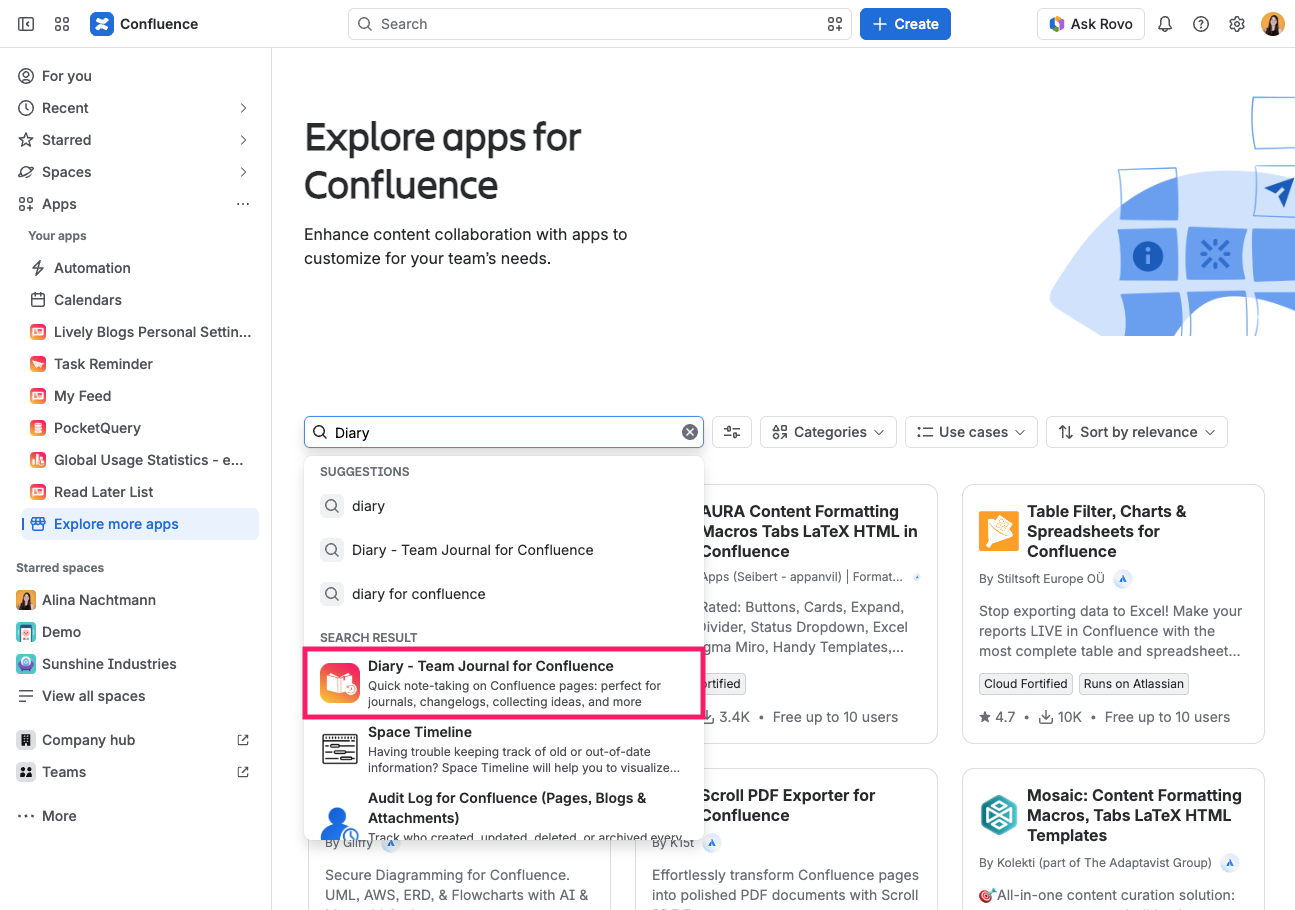
Click Find new apps and search for Diary.
-
Select Diary - Team Journal for Confluence Cloud and click Install.
-
Review the requested permissions and confirm.
That is the entire setup. There is no per-space step to enable and nothing to configure globally - once Diary is installed, the macro is available on every page in your site, and anyone who can edit a page can put a diary on it.
What Diary asks permission for
Forge apps declare up front what they need, and Confluence shows you the list before you confirm. Diary asks for five things:
|
Permission |
Why Diary needs it |
|---|---|
|
Read pages |
To read the entries, which are stored in the page itself |
|
Write pages |
To add, edit, and delete entries from view mode |
|
Read user profiles |
To show the name and avatar of an entry's author |
|
Check content permissions |
To hide the editor from people who may not edit the page |
|
Read content summaries |
To list your page templates in the configuration panel |
Diary stores nothing outside your Confluence site and calls no third-party service. Every entry is ordinary page content.
Next steps
You did it! Diary is ready to use. Continue with Writing Your First Entry.