
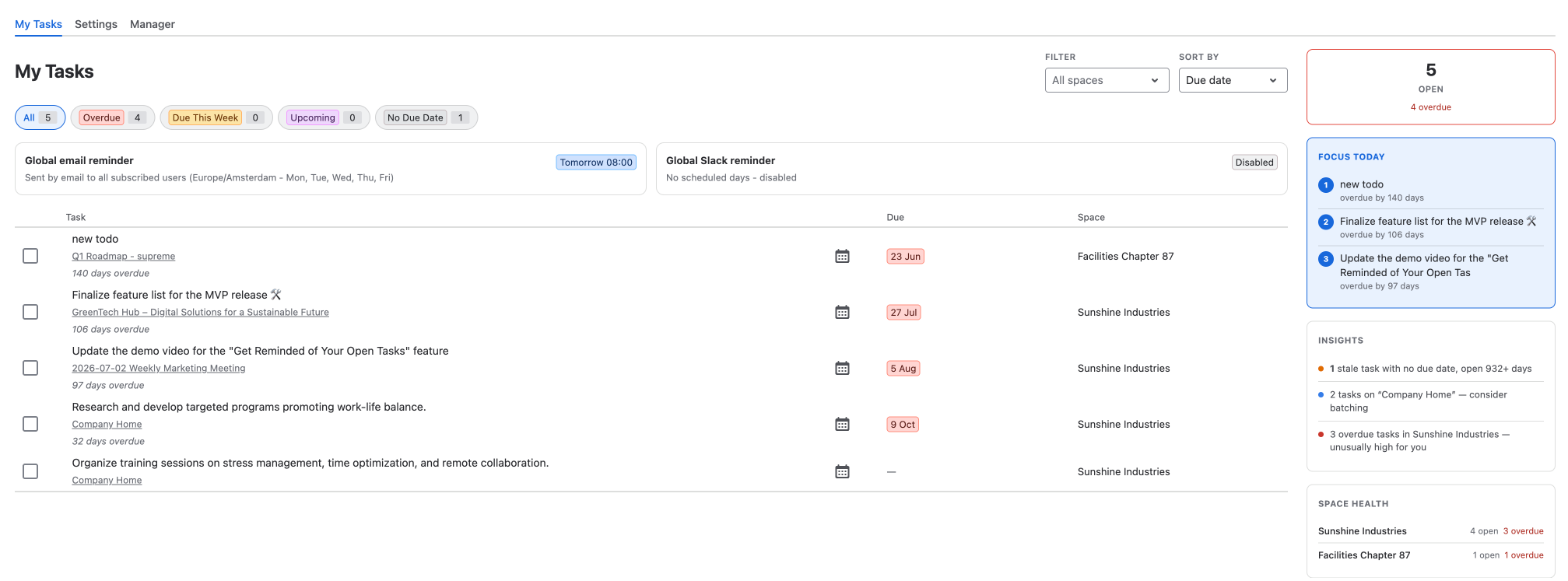
My Tasks is the first tab of the Task Reminder page. It shows every open Confluence task that is assigned to you - across all spaces, pages and blog posts you can see - so you no longer have to hunt for them.
Which tasks do I see?
-
All open tasks that are assigned to you. Tasks you created for other people are not included.
-
Tasks from every space you have access to. The space and group settings of the scheduled reminders do not limit this list.
-
Up to 500 tasks. If you have more, the page tells you: "Showing the first 500 tasks. Complete some to see the rest."
Each row shows the task text, a link to the page it is on, the due date and the space. Overdue tasks also show how many days they are overdue.
How do I find the right task?
Categories
Use the category chips above the list to narrow it down. Each chip shows how many tasks it contains:
-
All - every open task.
-
Overdue - the due date has passed.
-
Due This Week - due today or within the next 7 days.
-
Upcoming - due more than 7 days from now.
-
No Due Date - tasks without a due date.
Spaces
Use the Filter dropdown to show only the tasks of one space. It lists the spaces your tasks are in.
Sorting
With Sort by you can order the list by Due date (the default: earliest first, tasks without a due date last), Space or Page.
How do I complete a task?
Simply click the round button at the start of the row (Mark complete). The task is completed directly on its Confluence page, just as if you had ticked it there. Changed your mind? Click Undo in the message that appears.
To complete a task, you need permission to edit the page it is on. If you don't have it, Task Reminder tells you: "You do not have permission to edit the page containing this task."
What do the reminder cards at the top show?
Above the list you see the scheduled reminders of your site: Global email reminder and Global Slack reminder. Each card shows the schedule and time zone your administrator has set, and the badge tells you when the next reminder goes out. If a channel has no scheduled days, the card says Disabled.
What does the sidebar tell me?
The sidebar next to the list (or below it on smaller screens) gives you a quick picture of your workload. Cards only appear once there is enough data for them.
-
Open - the number of open tasks, and how many of them are overdue.
-
On-time - the share of your completed tasks that were done on or before their due date.
-
/week - how many tasks you complete per week on average over the last 8 weeks. The arrow shows whether you are getting faster or slower.
-
Focus today - the three tasks to look at first: the most overdue ones, then the ones due soonest, then your oldest task without a due date.
-
Insights - patterns we found, for example the day and time you are most productive, tasks without a due date that have been open for a long time, or several tasks on the same page that you could do in one go.
-
This week - how many tasks are due in the next 7 days, how many you will probably complete based on your pace, and your busiest day.
-
Upcoming due dates - a bar for every day of the next 14 days that has tasks due.
-
Deadline accuracy - how early or late you usually complete tasks compared to their due date.
-
Space health - your open and overdue tasks per space, the space with the most overdue tasks first.
Good to know
-
Today and Overdue are based on the time zone your administrator set for the email reminders, so they match what the reminders say.
-
The numbers in the sidebar are refreshed regularly. Tasks you complete on this page count right away; changes made elsewhere in Confluence can take a few hours to show up.
-
Large task lists load in steps: the first tasks appear right away, and the rest are added within a few seconds.
-
Want a reminder for a single task? Click the calendar icon in its row - see Personal Reminders.