
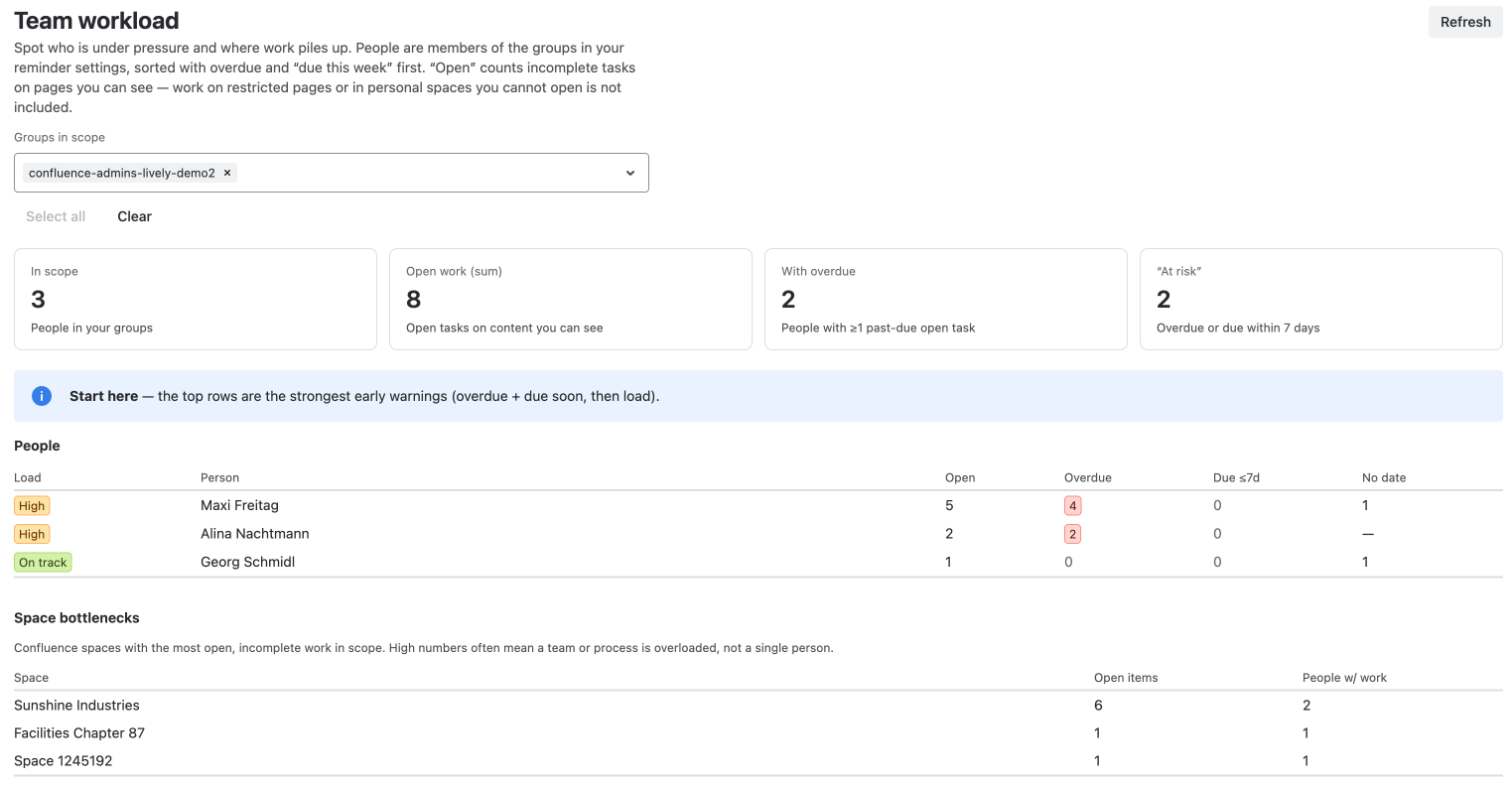
The Manager tab on the Task Reminder page shows your team's Team workload: who has a lot of open work, who is falling behind, and where work piles up. It helps you spot problems early - before a deadline is missed.
Who can see the Manager tab?
-
Confluence administrators always see it.
-
Members of the groups an administrator selected under Managers see it too.
If you don't see the tab, you are not in one of these groups - please ask your Confluence administrator.
Whose work do I see?
Use Groups in scope to choose the team you want to look at. You can pick from the groups that receive the scheduled reminders (the groups in the Task Reminder email and Slack settings). Select all takes all of them, Clear removes them, and Refresh loads the latest numbers.
The overview only counts tasks on content you are allowed to see. Work on restricted pages or in personal spaces you cannot open is not included, so your numbers can be lower than the real workload.
What do the numbers mean?
The four cards at the top sum up your team:
-
In scope - the people in the selected groups.
-
Open work (sum) - all their open tasks on content you can see.
-
With overdue - people with at least one overdue task.
-
"At risk" - tasks that are overdue or due within the next 7 days.
People
The People table lists every team member with their Open, Overdue, Due ≤7d and No date tasks. The people who need attention most are at the top. The Load column sums it up:
-
Critical - many overdue tasks, or a very large pile of open work with overdue tasks in it.
-
High - at least one overdue task, or a lot of open or soon-due work.
-
Watch - several tasks due soon or a growing amount of open work.
-
On track - nothing to worry about.
Space bottlenecks
This table shows the spaces with the most open work in your team, and how many people have work there. High numbers often point to an overloaded team or process rather than a single person.
Good to know
-
The overview shows up to 100 people (alphabetically). For larger teams, narrow down the groups in scope.
-
Numbers are kept for a few minutes so the tab loads quickly. Click Refresh to get the latest state.
-
Today and Overdue are based on the time zone your administrator set for the email reminders.
-
Deactivated accounts and app accounts are not listed.