
This guide shows you how to connect GitHub to PocketQuery using the GitHub REST API.
This part just walks you through adding the data source. For the complete tutorial on showing Github issues and pull requests in Confluence, check out: GitHub PRs and Issues [REST Basic Auth]
Step 1: Create a GitHub Personal Access Token
-
Go to https://github.com/settings/tokens and create a new Personal Access Token.
-
Make sure the token has read-only permissions for the repositories or orgs you want to access.
-
Save the token securely.
Step 2: Create a Datasource in PocketQuery
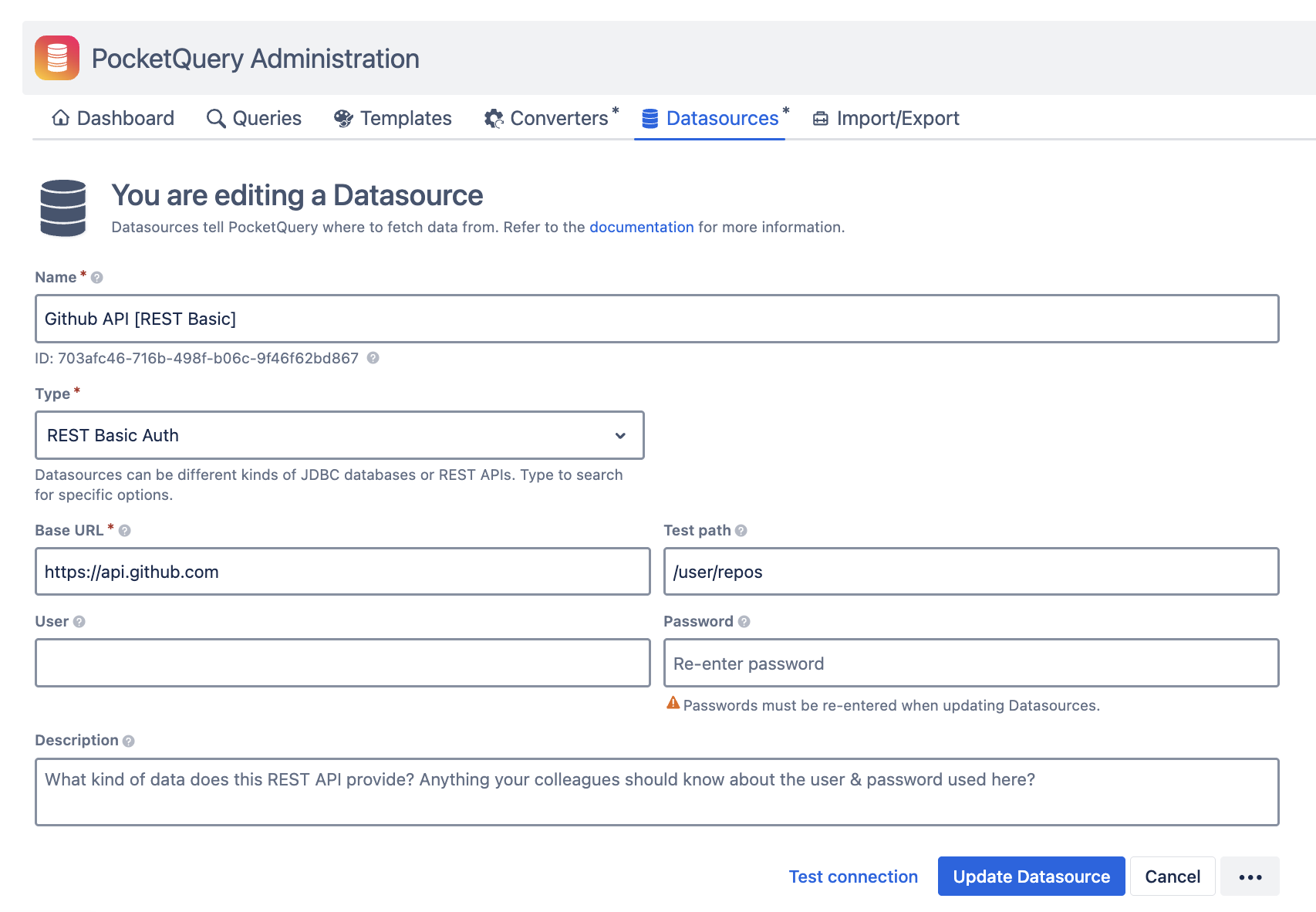
Open PocketQuery Administration → Datasources, and create a new REST datasource:
|
Field |
Value |
|---|---|
|
Name |
|
|
Type |
|
|
Base URL |
|
|
User |
(leave empty) |
|
Password |
(paste your GitHub Personal Access Token) |
|
Test path |
|
Test the connection and save the datasource.
Sample Use Cases
You can use the GitHub API with PocketQuery to build:
-
Sprint dashboards: Show PRs, issues, and commits by repo or label
-
Contributor boards: List top contributors per repo or org
-
Release monitors: Show GitHub Actions or workflow status
-
Security watchlists: Display Dependabot alerts across repos
🔗 Useful GitHub API Endpoints
|
Purpose |
Endpoint |
|---|---|
|
Open Pull Requests |
|
|
Open Issues |
|
|
Filtered Issues (e.g. bugs) |
|
|
Commits |
|
|
Contributors |
|
|
GitHub Actions Runs |
|
|
Deployments |
|
|
Dependabot Alerts (Repo) |
|
|
Dependabot Alerts (Org) |
|
|
Org Repositories |
|
|
Rate Limit (for debugging) |
|
Full documentation: GitHub REST API v3
For the complete tutorial on showing Github issues and pull requests in Confluence, check out: GitHub PRs and Issues [REST Basic Auth]