
With the Filters, you can make PocketQuery result tables easier to explore directly on a Confluence page. Instead of exporting a large table or scrolling through every row, your users can filter the displayed result right where the PocketQuery macro is rendered.
Good to know: Result filters work with query results that are rendered as an HTML table. If the macro result is not a table, PocketQuery will continue to show the result without the filter bar.

Where to find filters
You configure result filters in the Filters tab of the PocketQuery macro settings. Each PocketQuery macro can have its own filter setup, so you can show the same Query differently on different Confluence pages.
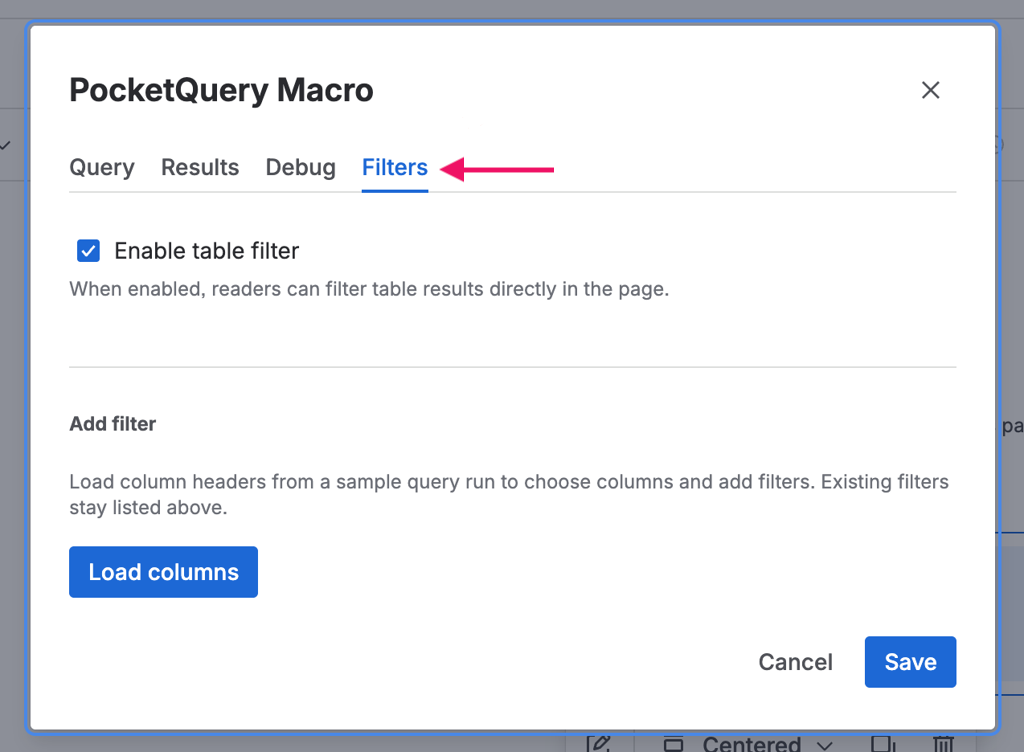
How to add filters in the macro settings
Follow these steps to add filters to a PocketQuery macro:
-
In the macro settings, select the Query you want the macro to execute. If your Query uses parameters, enter the parameter values first so PocketQuery can load the table columns.
-
Open the Filters tab.
-
Enable Table filters.
-
Click Load columns to load the header of the table.
-
Choose a Filter type.
-
For column-based filters, choose the Column the filter should use.
-
If the selected filter type needs an Operator, choose the operator you want to use.
-
Configure the remaining settings, such as Case sensitive or N (number of rows).
-
Click Add filter.
-
Repeat these steps if you want to add more filters.
-
Click Save to save the macro settings, then publish or update the Confluence page.
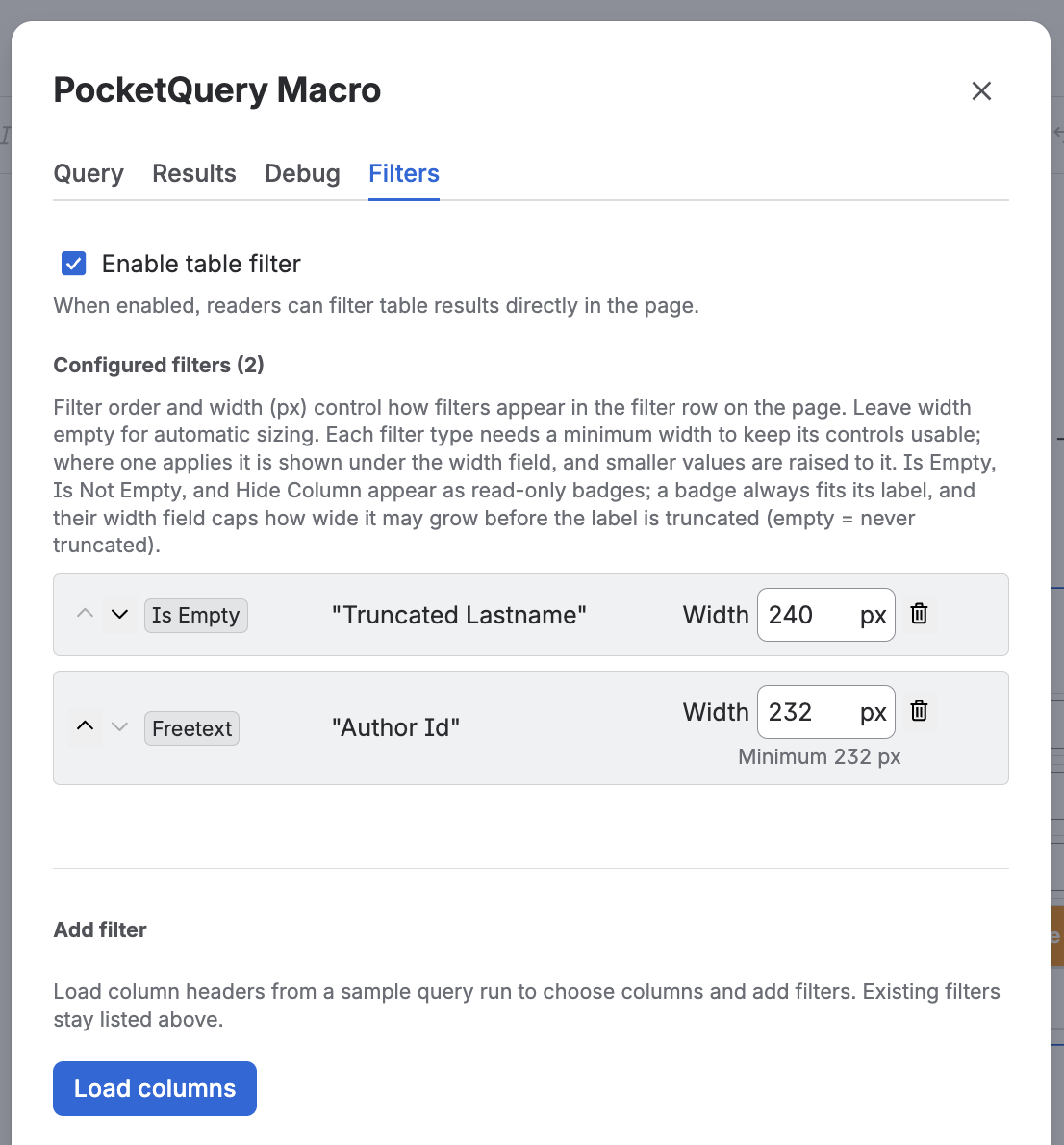
Filter order and width
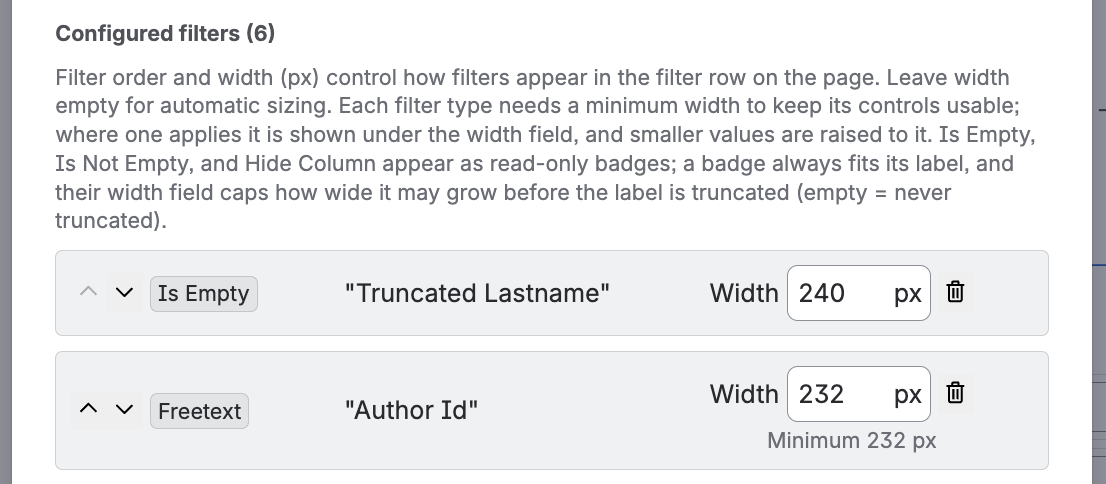
After you add filters, they appear in a list on the Filters tab. The order of this list is the order of the filter bar on the page.
-
Use the up and down chevron buttons (Move filter up / Move filter down) to change the order.
-
Use Width (px) to set how wide that filter should be, in pixels. Leave the field empty for automatic sizing. Each filter type has a minimum width shown in the settings; a smaller value is raised to that minimum. For the passive badges (Is Empty, Is Not Empty and Hide Column), the width caps the badge width instead of fixing it.
-
Use the trash button to remove a filter.
On narrow layouts, filters shrink and wrap to the next line so the filter bar never overflows.
Available filter types
The categories are as follows:
|
Filter type |
What it does |
Settings |
|---|---|---|
|
Dropdown |
Lets users pick one or more values from a column. Only rows with matching values remain visible. |
Column |
|
Freetext |
Lets users enter text and compare it with the selected column. |
Column, Operator, Case sensitive |
|
Number |
Filters a column by numeric values. |
Column, Operator, number value, or range values for between |
|
Date |
Filters a column by date values. |
Column, Operator, date value, or date range for between |
|
Hide Column |
Hides the selected column from the displayed table. This does not remove rows. |
Column |
|
Whole Table |
Adds one search field that searches across all visible table columns. |
Case sensitive |
|
Is Empty |
Shows only rows where the selected column is empty. |
Column |
|
Is Not Empty |
Shows only rows where the selected column contains a value. |
Column |
|
Top N Rows |
Limits the result to a fixed number of rows, for example the first 10 rows. |
N (number of rows) |
Freetext filters
Use a Freetext filter when users should type a search value themselves. The following operators are available:
-
contains: Shows rows where the column contains the entered text.
-
not contains: Shows rows where the column does not contain the entered text.
-
=: Shows rows where the column exactly matches the entered text.
-
≠: Shows rows where the column does not exactly match the entered text.
-
starts with: Shows rows where the column starts with the entered text.
-
ends with: Shows rows where the column ends with the entered text.
-
regex: Shows rows where the column matches the entered regular expression.
Enable Case sensitive if uppercase and lowercase letters should be treated as different values.
Number and date filters
Number and Date filters use the same comparison operators:
-
=: Equal to the configured value.
-
≠: Not equal to the configured value.
-
>: Greater than the configured value.
-
≥: Greater than or equal to the configured value.
-
<: Less than the configured value.
-
≤: Less than or equal to the configured value.
-
between: Inside the configured range.
Use between when you want users to filter a range, for example all rows between two dates or all numbers between two amounts.
Dropdown filters
Use a Dropdown filter when the selected column has a known set of values, such as status names, categories, countries, or users. PocketQuery reads the values from the result table and lets users select one or more values they want to keep visible.
If you add more than one Dropdown filter, the available options cascade: each dropdown only lists values that still occur in rows matching the other active filters. For example, choosing a continent can reduce the country dropdown to countries in that continent.
Whole table search
Use Whole Table when users should search the complete result table with a single input. This is useful for broad searches where users may not know which column contains the value they are looking for.
Whole Table is a global filter. It does not require a column selection.
Hide columns
Use Hide Column when a Query returns columns that are useful for filtering or context, but should not be displayed to page viewers. The data remains part of the rendered table configuration, but the selected column is hidden from the visible result.
Empty and filled values
Use Is Empty to show only rows where a column has no value. Use Is Not Empty to show only rows where a column contains a value.
These filters are useful for quickly finding incomplete data, optional fields, or rows that still need attention.
Top N rows
Use Top N Rows when you only want to show a limited number of rows from the table. Enter the number of rows in N (number of rows).
This is useful for overview pages where users only need a short list, such as the first 5 or 10 entries.
Sorting and resetting filters
When table filters are enabled, users can also sort the result table by clicking the table headers. Sorting works together with the active filters.
Users can click Reset filters to clear the values they entered in the filter bar and return to the configured default filter state.
How multiple filters work together
If you add several filters, PocketQuery applies them together. A row must match all active filters to remain visible. This makes it possible to combine filters, for example:
-
A Whole Table search for a customer name.
-
A Dropdown filter for the status column.
-
A Date filter for the current month.
-
A Hide Column filter for an internal ID column.